Introduction
Screen recording software allows users to capture on-screen activity, including video, audio, and sometimes webcam input, for purposes like tutorials, presentations, and content creation. These tools have evolved from basic screen capture utilities into full production suites with editing, AI enhancements, and collaboration features.
Today, screen recording plays a crucial role in remote work, online education, product demos, and content marketing. Businesses rely on it for training and documentation, while creators use it for tutorials, gaming, and video production.
Real-world use cases:
- Creating video tutorials and courses
- Recording software demos and walkthroughs
- Capturing gameplay and streaming content
- Internal training and onboarding videos
- Customer support and troubleshooting documentation
What buyers should evaluate:
- Recording quality (HD/4K support)
- Ease of use and learning curve
- Audio recording capabilities
- Editing and post-production tools
- File export formats
- Integration with sharing platforms
- Performance impact on system
- AI features (auto captions, trimming)
- Pricing and licensing model
- Cross-platform compatibility
Best for: Educators, content creators, marketers, developers, and businesses that need to capture and share screen-based content efficiently.
Not ideal for: Users who only need occasional screenshots or very basic recording—built-in OS tools may be sufficient.
Key Trends in Screen Recording Software
- AI-powered editing: Automatic trimming, captions, and noise removal
- Cloud-based recording and sharing: Instant sharing and collaboration
- Lightweight performance optimization: Reduced CPU/GPU usage
- Built-in video editing suites: Eliminating the need for external tools
- Cross-device workflows: Desktop, mobile, and browser-based recording
- Annotation and interactivity: Real-time drawing and highlighting tools
- Privacy-focused recording: Selective screen/window capture
- Integration with productivity tools: CRMs, LMS, and project tools
- GIF and short-form video support: For quick communication
- Automation in workflows: Scheduled recordings and templates
How We Selected These Tools (Methodology)
- Evaluated industry popularity and adoption
- Assessed feature depth (recording + editing)
- Considered ease of use across skill levels
- Reviewed performance and stability
- Analyzed integration capabilities
- Included tools for different user segments
- Evaluated innovation (AI, automation)
- Reviewed community and documentation support
- Considered pricing flexibility and value
Top 10 Screen Recording Software Tools
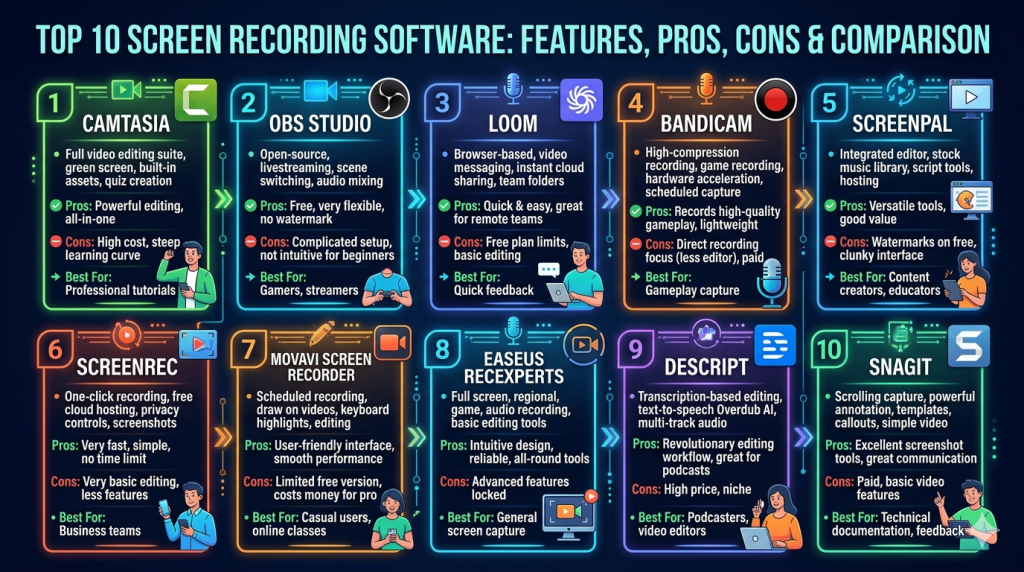
#1 — Camtasia
Short description: A professional screen recording and video editing software designed for educators and content creators.
Key Features
- Screen recording and video editing
- Drag-and-drop editor
- Annotations and callouts
- Multi-track timeline editing
- Audio enhancements
- Templates and assets
- Export in multiple formats
Pros
- All-in-one solution
- Powerful editing capabilities
Cons
- Higher cost
- Can be resource-intensive
Platforms / Deployment
Windows / macOS
Local software
Security & Compliance
Not publicly stated
Integrations & Ecosystem
- Video hosting platforms
- File sharing tools
- Content workflows
Support & Community
Strong documentation and professional support
#2 — OBS Studio
Short description: A free, open-source tool offering advanced recording and streaming capabilities.
Key Features
- High-performance recording
- Scene-based workflows
- Plugin support
- Multi-source capture
- Real-time encoding
- Custom layouts
- Cross-platform support
Pros
- Completely free
- Highly customizable
Cons
- Complex for beginners
- No built-in editing
Platforms / Deployment
Windows / macOS / Linux
Local software
Security & Compliance
Not publicly stated
Integrations & Ecosystem
- Streaming platforms
- Plugin ecosystem
- Custom integrations
Support & Community
Very large global community
#3 — Loom
Short description: A cloud-based screen recorder focused on quick recording and instant sharing.
Key Features
- Instant recording and sharing
- Webcam overlay
- Browser extension
- Commenting and feedback
- Basic editing tools
- Cross-device support
- Cloud storage
Pros
- Extremely easy to use
- Fast sharing workflows
Cons
- Limited editing features
- Free plan limitations
Platforms / Deployment
Web / Windows / macOS / iOS / Android
Cloud
Security & Compliance
Not publicly stated
Integrations & Ecosystem
- Productivity tools
- Team collaboration platforms
- Browser extensions
Support & Community
Good onboarding and support
#4 — Bandicam
Short description: A lightweight screen recording software known for high-quality capture and performance.
Key Features
- High-quality video recording
- Game recording mode
- Device recording support
- Real-time drawing
- Scheduled recording
- Screen capture
- Compression optimization
Pros
- Excellent performance
- High-quality output
Cons
- Windows-focused
- Limited editing tools
Platforms / Deployment
Windows
Local software
Security & Compliance
Not publicly stated
Integrations & Ecosystem
- Video tools
- File export systems
- Basic integrations
Support & Community
Moderate support and community
#5 — ScreenPal
Short description: A cross-platform screen recording and editing tool suitable for educators and teams.
Key Features
- Screen and webcam recording
- Built-in video editor
- Hosting and sharing tools
- Annotation features
- Cloud storage
- Mobile support
- Screenshot tools
Pros
- Cross-platform support
- Includes editing tools
Cons
- Limited advanced features
- UI may feel basic
Platforms / Deployment
Windows / macOS / iOS / Android
Cloud + Local
Security & Compliance
Not publicly stated
Integrations & Ecosystem
- Education tools
- Content platforms
- Basic integrations
Support & Community
Moderate support and documentation
#6 — ScreenRec
Short description: A lightweight screen recorder focused on fast capture and instant sharing.
Key Features
- Instant sharing links
- Webcam overlay
- Audio recording
- Lightweight performance
- No watermark
- Unlimited recording
- Secure sharing
Pros
- Very lightweight
- Easy to use
Cons
- Limited editing features
- Basic interface
Platforms / Deployment
Windows / macOS / Linux
Local + Cloud
Security & Compliance
Not publicly stated
Integrations & Ecosystem
- Sharing tools
- Basic integrations
Support & Community
Limited support
#7 — Movavi Screen Recorder
Short description: A beginner-friendly screen recorder with built-in editing tools and automation features.
Key Features
- Scheduled recording
- Audio capture
- Built-in editing
- Webcam overlay
- Export formats
- Screenshot tools
- User-friendly interface
Pros
- Easy to use
- Balanced feature set
Cons
- Paid software
- Limited advanced features
Platforms / Deployment
Windows / macOS
Local software
Security & Compliance
Not publicly stated
Integrations & Ecosystem
- Video tools
- File export workflows
Support & Community
Good support resources
#8 — EaseUS RecExperts
Short description: A versatile screen recording tool for professionals and businesses.
Key Features
- Full-screen and region recording
- Audio capture
- Webcam recording
- Scheduled recording
- Multiple export formats
- Screenshot tools
- Simple UI
Pros
- Easy to use
- Good feature balance
Cons
- Paid plans required
- Limited advanced editing
Platforms / Deployment
Windows / macOS
Local software
Security & Compliance
Not publicly stated
Integrations & Ecosystem
- File sharing tools
- Basic integrations
Support & Community
Reliable documentation
#9 — Descript
Short description: A modern screen recording and editing platform with AI-powered transcription and editing.
Key Features
- Screen recording
- AI transcription
- Text-based video editing
- Audio editing tools
- Collaboration features
- Multi-track editing
- Publishing tools
Pros
- Powerful AI features
- Great for content teams
Cons
- Learning curve
- Subscription-based
Platforms / Deployment
Windows / macOS
Cloud + Local
Security & Compliance
Not publicly stated
Integrations & Ecosystem
- Content tools
- Collaboration platforms
Support & Community
Strong documentation and support
#10 — Snagit
Short description: A simple yet powerful tool for screen capture and quick recordings.
Key Features
- Screen capture and recording
- Annotation tools
- GIF creation
- Templates
- Editing tools
- Quick sharing
- Screenshot enhancements
Pros
- Very easy to use
- Great for quick content
Cons
- Limited video editing
- Not suited for advanced production
Platforms / Deployment
Windows / macOS
Local software
Security & Compliance
Not publicly stated
Integrations & Ecosystem
- Productivity tools
- File sharing platforms
Support & Community
Strong documentation
Comparison Table (Top 10)
| Tool Name | Best For | Platform(s) Supported | Deployment | Standout Feature | Public Rating |
|---|---|---|---|---|---|
| Camtasia | Professionals | Windows, macOS | Local | Advanced editing | N/A |
| OBS Studio | Advanced users | Windows, macOS, Linux | Local | Free & customizable | N/A |
| Loom | Teams | Web, Desktop, Mobile | Cloud | Instant sharing | N/A |
| Bandicam | Gamers | Windows | Local | High-performance recording | N/A |
| ScreenPal | Education | Multi-platform | Hybrid | Built-in editor | N/A |
| ScreenRec | Quick recording | Multi-platform | Hybrid | Instant sharing links | N/A |
| Movavi | Beginners | Windows, macOS | Local | Ease of use | N/A |
| EaseUS RecExperts | Professionals | Windows, macOS | Local | Versatile recording | N/A |
| Descript | Content teams | Windows, macOS | Hybrid | AI editing | N/A |
| Snagit | Quick tasks | Windows, macOS | Local | Annotation tools | N/A |
Evaluation & Scoring of Screen Recording Software
| Tool Name | Core | Ease | Integrations | Security | Performance | Support | Value | Weighted Total |
|---|---|---|---|---|---|---|---|---|
| Camtasia | 9 | 8 | 8 | 6 | 8 | 9 | 7 | 8.2 |
| OBS Studio | 9 | 6 | 8 | 6 | 9 | 8 | 10 | 8.4 |
| Loom | 7 | 10 | 8 | 6 | 7 | 8 | 8 | 7.9 |
| Bandicam | 8 | 8 | 7 | 6 | 9 | 7 | 7 | 7.8 |
| ScreenPal | 8 | 8 | 7 | 6 | 7 | 7 | 8 | 7.7 |
| ScreenRec | 7 | 9 | 6 | 6 | 7 | 6 | 9 | 7.5 |
| Movavi | 8 | 9 | 7 | 6 | 8 | 7 | 7 | 7.9 |
| EaseUS | 8 | 8 | 7 | 6 | 8 | 7 | 7 | 7.8 |
| Descript | 9 | 7 | 8 | 6 | 8 | 8 | 7 | 8.0 |
| Snagit | 7 | 9 | 7 | 6 | 7 | 8 | 7 | 7.6 |
Scores are comparative and should be used as guidance rather than absolute benchmarks.
Which Screen Recording Software Tool Is Right for You?
Solo / Freelancer
- Best: OBS Studio, ScreenRec, Loom
- Focus on simplicity and affordability
SMB
- Best: Loom, Movavi, ScreenPal
- Focus on collaboration and ease of use
Mid-Market
- Best: Descript, EaseUS
- Focus on editing and workflow integration
Enterprise
- Best: Camtasia, OBS Studio
- Focus on scalability and performance
Budget vs Premium
- Budget: OBS Studio, ScreenRec
- Premium: Camtasia, Descript
Feature Depth vs Ease of Use
- Easy: Loom, Snagit
- Advanced: OBS Studio, Camtasia
Integrations & Scalability
- Strong: Descript, Loom
- Basic: ScreenRec
Security & Compliance Needs
- Most tools: Basic security
- Enterprise compliance: Not publicly stated
Frequently Asked Questions (FAQs)
What is screen recording software?
Software used to capture video and audio from your screen.
Is free software good enough?
Yes, for basic needs, but advanced features may require paid tools.
Can I record audio?
Most tools support microphone and system audio recording.
Do I need editing tools?
Yes, if you plan to create professional content.
Which tool is easiest?
Loom and Snagit are among the easiest.
Can I record games?
Yes, tools like Bandicam are optimized for gaming.
Is OBS good for recording?
Yes, it offers powerful recording and streaming features.
Can I share recordings instantly?
Cloud-based tools allow instant sharing.
What is the biggest mistake?
Choosing a tool without considering future needs.
Do these tools support AI?
Some tools offer AI features like transcription and editing.
Conclusion
Screen recording software has become an essential tool across industries, enabling users to create tutorials, presentations, training materials, and content efficiently. The category has expanded significantly, offering solutions that range from lightweight recorders to full-featured production platforms.
The most important takeaway is that the best tool depends entirely on your specific use case. Some users prioritize ease of use and quick sharing, while others need advanced editing, automation, or high-performance recording. Understanding your requirements will help narrow down the options effectively.
Another key factor is workflow compatibility. A tool that integrates well with your existing systems and supports your content creation process will provide far greater value than one chosen solely for its features. Performance, usability, and scalability should always be considered together.
