Introduction
Screen capture tools are software applications that allow users to record their screens, take screenshots, and create annotated visuals or videos for communication and documentation. In simple terms, they help you “show instead of tell.”
Screen capture tools have evolved from basic utilities into powerful collaboration and productivity platforms. With the rise of remote work, asynchronous communication, and digital-first workflows, these tools are now essential across industries.
Common use cases include:
- Creating product demos and tutorials
- Reporting bugs and documenting issues
- Internal training and onboarding
- Sales presentations and customer walkthroughs
- Knowledge base and SOP documentation
What buyers should evaluate:
- Ease of use and learning curve
- Recording quality (video, audio, resolution)
- Annotation and editing capabilities
- Sharing and collaboration features
- Integration with other tools (Slack, Jira, etc.)
- Storage and hosting options
- Security and compliance features
- Pricing and scalability
- Cross-platform support
- Performance and reliability
Best for: Product teams, customer support, marketers, educators, developers, and distributed teams of all sizes.
Not ideal for: Users who only need basic screenshots (built-in OS tools may suffice), or organizations requiring full-scale video production suites (video editing software may be more appropriate).
Key Trends in Screen Capture Tools
- AI-powered editing: Automatic trimming, noise reduction, captions, and highlights
- Async-first communication: Replacing meetings with video walkthroughs
- Embedded collaboration: Comments, reactions, and threaded discussions on recordings
- Cloud-native workflows: Instant sharing links and centralized media libraries
- Security-first design: Enterprise-grade encryption, SSO, and audit trails becoming standard
- Lightweight recording tools: Browser-based capture without heavy installations
- Integration ecosystems: Deep integrations with project management, CRM, and dev tools
- Short-form video focus: Tools optimized for quick, bite-sized communication
- Mobile-first capture: Increasing demand for capturing workflows on mobile devices
- Usage-based pricing models: Credits or storage-based billing gaining traction
How We Selected These Tools (Methodology)
We evaluated tools using the following criteria:
- Market adoption and brand recognition across industries
- Feature completeness, including recording, editing, and sharing
- Reliability and performance signals, especially for HD recording
- Security posture, including encryption and access controls
- Integration ecosystem, especially with workplace tools
- User experience, focusing on ease of use and onboarding
- Support for multiple platforms (desktop, browser, mobile)
- Scalability, from individual users to enterprise teams
- Innovation, particularly AI and automation features
- Customer fit, ensuring coverage across freelancers to large enterprises
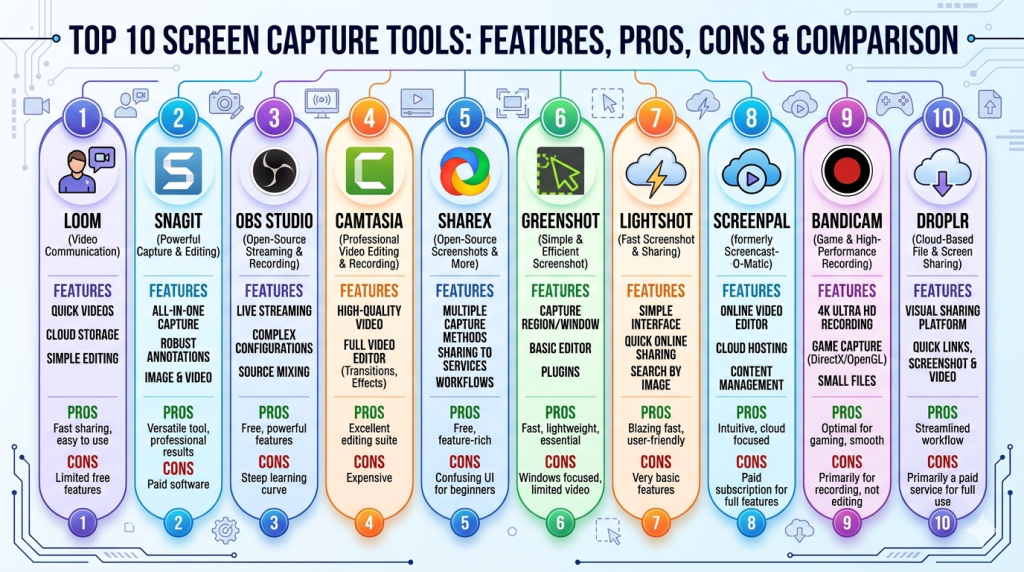
Top 10 Screen Capture Tools
#1 — Loom
Short description: A leading async video communication tool designed for quick screen recordings and sharing. Ideal for teams replacing meetings with video.
Key Features
- Instant screen and webcam recording
- AI-generated summaries and transcripts
- One-click sharing via links
- Viewer analytics and engagement tracking
- Team workspaces and folders
- Basic editing and trimming tools
- Comments and reactions on videos
Pros
- Extremely easy to use
- Strong async communication features
- Fast sharing and playback
Cons
- Limited advanced editing capabilities
- Storage limits on free plans
Platforms / Deployment
Web / Windows / macOS / iOS / Android
Cloud
Security & Compliance
SSO/SAML, MFA, encryption, RBAC
SOC 2 (reported publicly), GDPR support
Integrations & Ecosystem
Loom integrates well with modern collaboration tools, making it easy to embed videos into workflows.
- Slack
- Jira
- Notion
- Google Workspace
- Salesforce
Support & Community
Strong documentation, onboarding resources, and enterprise support tiers.
#2 — Snagit
Short description: A powerful screen capture and image editing tool focused on creating polished screenshots and visual documentation.
Key Features
- Advanced screenshot capture (scrolling, panoramic)
- Built-in image editor with annotations
- Video capture and GIF creation
- Templates for documentation
- OCR (text extraction)
- Screen recording with audio
- Asset library
Pros
- Best-in-class annotation tools
- Ideal for documentation-heavy workflows
Cons
- Paid-only (no strong free tier)
- Limited collaboration features
Platforms / Deployment
Windows / macOS
Local software
Security & Compliance
Not publicly stated
Integrations & Ecosystem
Primarily standalone but supports export and sharing workflows.
- Google Drive
- Dropbox
- Microsoft Office
Support & Community
Well-established product with strong documentation and long-term user base.
#3 — OBS Studio
Short description: A free, open-source screen recording and streaming tool widely used by developers and content creators.
Key Features
- High-performance video recording
- Live streaming capabilities
- Scene composition and transitions
- Audio mixing
- Plugin ecosystem
- Customizable settings
- No watermark or limits
Pros
- Completely free and open-source
- Highly customizable
Cons
- Steep learning curve
- No built-in collaboration or sharing
Platforms / Deployment
Windows / macOS / Linux
Local software
Security & Compliance
Not publicly stated
Integrations & Ecosystem
Strong plugin ecosystem enables extensibility.
- Twitch
- YouTube
- Custom plugins
Support & Community
Large global community, extensive forums, and guides.
#4 — Camtasia
Short description: A premium screen recording and video editing suite for professional-quality tutorials and presentations.
Key Features
- Screen recording with high resolution
- Advanced video editing timeline
- Effects, transitions, and animations
- Audio editing tools
- Templates and themes
- Interactive quizzes
- Asset library
Pros
- Professional-grade editing
- All-in-one solution
Cons
- Expensive
- Resource-intensive
Platforms / Deployment
Windows / macOS
Local software
Security & Compliance
Not publicly stated
Integrations & Ecosystem
Limited integrations but strong export capabilities.
- YouTube
- Vimeo
- PowerPoint
Support & Community
Strong training resources and enterprise support.
#5 — ShareX
Short description: A free and open-source tool for advanced screenshot capture and automation.
Key Features
- Customizable screenshot workflows
- Screen recording and GIF creation
- Automated uploads
- Annotation tools
- OCR support
- Workflow automation
- URL sharing
Pros
- Highly customizable
- Completely free
Cons
- Windows-only
- Complex interface
Platforms / Deployment
Windows
Local software
Security & Compliance
Not publicly stated
Integrations & Ecosystem
Supports multiple upload and sharing services.
- Imgur
- FTP
- Custom APIs
Support & Community
Active open-source community with guides.
#6 — Greenshot
Short description: A lightweight screenshot tool focused on simplicity and efficiency.
Key Features
- Quick screenshot capture
- Basic annotation tools
- Export options
- Keyboard shortcuts
- Lightweight performance
- Simple UI
Pros
- Easy to use
- Lightweight and fast
Cons
- Limited features
- Minimal video support
Platforms / Deployment
Windows / macOS
Local software
Security & Compliance
Not publicly stated
Integrations & Ecosystem
Basic integrations for export.
- Office tools
Support & Community
Community-driven with basic documentation.
#7 — Lightshot
Short description: A simple screenshot tool for quick captures and sharing.
Key Features
- Fast screenshot capture
- Basic annotation tools
- Instant sharing links
- Image search
- Minimal UI
Pros
- Very lightweight
- Easy sharing
Cons
- Limited features
- Privacy concerns in public uploads
Platforms / Deployment
Windows / macOS
Cloud + Local
Security & Compliance
Not publicly stated
Integrations & Ecosystem
Minimal ecosystem.
Support & Community
Limited support resources.
#8 — ScreenPal (formerly Screencast-O-Matic)
Short description: A versatile tool for screen recording, editing, and hosting videos.
Key Features
- Screen and webcam recording
- Video editing tools
- Hosting and sharing
- Captions and overlays
- Stock library
- Cloud storage
Pros
- Good balance of features and price
- Built-in hosting
Cons
- UI can feel dated
- Performance varies
Platforms / Deployment
Web / Windows / macOS / iOS / Android
Cloud
Security & Compliance
Not publicly stated
Integrations & Ecosystem
Supports common workflows.
- YouTube
- Google Drive
Support & Community
Moderate support and documentation.
#9 — Bandicam
Short description: A high-performance screen recording tool popular among gamers and professionals.
Key Features
- High-quality recording
- Low CPU usage
- Game recording mode
- Device recording
- Scheduled recording
- Compression options
Pros
- Excellent performance
- High-quality output
Cons
- Limited editing features
- Windows-only
Platforms / Deployment
Windows
Local software
Security & Compliance
Not publicly stated
Integrations & Ecosystem
Minimal integrations.
Support & Community
Basic support resources.
#10 — Droplr
Short description: A cloud-based screen capture and file sharing tool focused on speed and simplicity.
Key Features
- Screen recording and screenshots
- Instant sharing links
- Cloud storage
- Team collaboration
- Annotations
- File sharing
Pros
- Fast and simple
- Strong sharing capabilities
Cons
- Limited editing tools
- Paid plans required for teams
Platforms / Deployment
Web / Windows / macOS
Cloud
Security & Compliance
Encryption, access controls
Other details not publicly stated
Integrations & Ecosystem
Supports productivity tools.
- Slack
- Trello
- Gmail
Support & Community
Good onboarding and support.
Comparison Table (Top 10)
| Tool Name | Best For | Platform(s) Supported | Deployment | Standout Feature | Public Rating |
|---|---|---|---|---|---|
| Loom | Async communication | Web, Desktop, Mobile | Cloud | AI video summaries | N/A |
| Snagit | Documentation | Windows, macOS | Local | Advanced annotation | N/A |
| OBS Studio | Streaming/advanced recording | Win, macOS, Linux | Local | Open-source flexibility | N/A |
| Camtasia | Professional editing | Windows, macOS | Local | Video editing suite | N/A |
| ShareX | Automation users | Windows | Local | Workflow automation | N/A |
| Greenshot | Simple screenshots | Win, macOS | Local | Lightweight capture | N/A |
| Lightshot | Quick sharing | Win, macOS | Hybrid | Instant links | N/A |
| ScreenPal | Balanced use | Web, Desktop, Mobile | Cloud | Built-in hosting | N/A |
| Bandicam | High-performance recording | Windows | Local | Low CPU usage | N/A |
| Droplr | Fast sharing | Web, Desktop | Cloud | Instant sharing | N/A |
Evaluation & Scoring of Screen Capture Tools
| Tool Name | Core (25%) | Ease (15%) | Integrations (15%) | Security (10%) | Performance (10%) | Support (10%) | Value (15%) | Weighted Total |
|---|---|---|---|---|---|---|---|---|
| Loom | 9 | 10 | 8 | 8 | 9 | 9 | 8 | 8.8 |
| Snagit | 9 | 8 | 6 | 6 | 9 | 8 | 7 | 7.9 |
| OBS Studio | 9 | 5 | 7 | 5 | 9 | 8 | 10 | 7.8 |
| Camtasia | 10 | 7 | 6 | 6 | 9 | 9 | 6 | 8.0 |
| ShareX | 8 | 6 | 7 | 5 | 8 | 7 | 10 | 7.6 |
| Greenshot | 6 | 9 | 5 | 5 | 7 | 6 | 9 | 6.9 |
| Lightshot | 5 | 9 | 4 | 4 | 7 | 5 | 9 | 6.4 |
| ScreenPal | 8 | 8 | 7 | 6 | 7 | 7 | 8 | 7.6 |
| Bandicam | 7 | 7 | 4 | 5 | 9 | 6 | 7 | 6.9 |
| Droplr | 7 | 9 | 8 | 7 | 8 | 8 | 7 | 7.9 |
How to interpret:
- Scores are comparative across tools, not absolute
- Higher totals indicate stronger overall balance
- Choose based on your specific use case
- Enterprises should prioritize security and integrations
- Individuals may prioritize ease and affordability
Which Screen Capture Tools Tool Is Right for You?
Solo / Freelancer
- Best: Loom, Lightshot, ScreenPal
- Focus on simplicity, speed, and cost
SMB
- Best: Loom, Droplr, Snagit
- Balance collaboration and documentation
Mid-Market
- Best: Loom, ScreenPal, Camtasia
- Need better workflows and integrations
Enterprise
- Best: Loom, Camtasia
- Focus on governance, scalability, and security
Budget vs Premium
- Free/Open-source: OBS, ShareX, Greenshot
- Premium: Camtasia, Snagit
Feature Depth vs Ease of Use
- Easy: Loom, Lightshot
- Advanced: OBS, Camtasia
Integrations & Scalability
- Strong integrations: Loom, Droplr
- Standalone tools: ShareX, Bandicam
Security & Compliance Needs
- Enterprise-ready: Loom
- Basic-level: Most others
Frequently Asked Questions (FAQs)
What are screen capture tools used for?
They help record screens, capture images, and create visual communication for training, support, and collaboration.
Are free screen capture tools enough?
Yes for basic use. Advanced editing and collaboration may require paid tools.
Do these tools support video editing?
Some do (like Camtasia and ScreenPal), while others focus only on capture.
Can I use these tools for tutorials?
Yes, many tools are specifically designed for tutorials and demos.
Are screen recordings secure?
Depends on the tool. Look for encryption, access controls, and compliance features.
Do they work offline?
Some tools are fully offline (Snagit, OBS), while others rely on cloud features.
Can I integrate with Slack or Jira?
Yes, many modern tools support integrations for workflow automation.
What is the best tool for teams?
Loom is widely used for team-based async communication.
Is there a learning curve?
Simple tools are easy; advanced tools like OBS take time to learn.
Can I switch tools easily?
Yes, but migrating workflows and stored content may require effort.
Conclusion
Screen capture tools have become a core part of modern digital workflows, enabling faster communication, better documentation, and more efficient collaboration. From simple screenshot tools to advanced video platforms, the category offers options for every need.
There is no single “best” tool—your choice depends on your priorities, whether that’s ease of use, advanced editing, or performance.
Start by shortlisting 2–3 tools, test them in real workflows, and validate integrations and security before making a final decision.
