Introduction
Vector illustration tools are software applications used to create scalable graphics using mathematical paths instead of pixels. Unlike raster images, vector graphics can be resized infinitely without losing quality, making them ideal for logos, icons, illustrations, and design systems.
These tools play a critical role in modern design workflows, especially for branding, UI/UX design, marketing assets, and digital illustration. As businesses increasingly rely on visual identity and cross-platform consistency, vector illustration tools have become essential for designers and creative teams.
Common use cases include:
- Logo and brand identity design
- UI/UX design and wireframes
- Icon and illustration creation
- Marketing and advertising graphics
- Print and packaging design
What buyers should evaluate:
- Drawing and path editing capabilities
- Precision and control tools
- Ease of use and learning curve
- File format compatibility (SVG, AI, EPS, etc.)
- Collaboration features
- Integration with design ecosystems
- Performance with complex files
- Platform compatibility
- Pricing model
- Export flexibility
Best for: Graphic designers, illustrators, UI/UX designers, branding teams, and marketing professionals.
Not ideal for: Users working primarily with photo editing or pixel-based design—raster tools may be more appropriate.
Key Trends in Vector Illustration Tools
- AI-assisted design: Auto-vectorization, shape generation, and smart suggestions
- Cloud-based collaboration: Real-time editing and team workflows
- Cross-platform design systems: Seamless design handoff across tools
- Component-based design: Reusable assets and symbols
- Integration with product design tools: Bridging UI/UX and illustration workflows
- Performance optimization: Handling large vector files efficiently
- Browser-based tools: Reduced dependency on desktop software
- Template and asset libraries: Faster creation for non-designers
- Interoperability standards: Improved SVG and cross-tool compatibility
- Subscription and hybrid pricing models: Flexible access options
How We Selected These Tools (Methodology)
We selected these tools based on:
- Industry adoption and popularity among designers
- Depth of vector editing capabilities
- Performance and reliability with complex illustrations
- Availability of modern features like AI and collaboration
- Integration with broader design ecosystems
- Ease of use for beginners and professionals
- Cross-platform availability
- Community support and learning resources
- Scalability for teams and enterprises
- Balance between affordability and feature richness
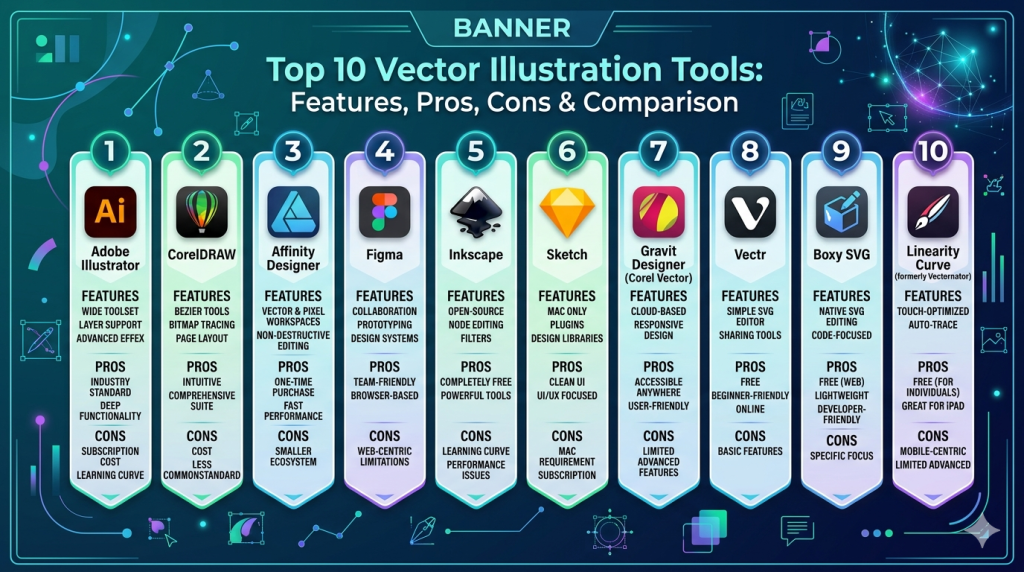
Top 10 Vector Illustration Tools
#1 — Adobe Illustrator
Short description: Industry-standard vector design software used for professional illustration, branding, and design workflows.
Key Features
- Advanced path and shape tools
- Pen tool precision editing
- Artboards and layout management
- Extensive plugin ecosystem
- AI-powered features
- File compatibility (AI, SVG, EPS)
- Integration with creative ecosystem
Pros
- Industry standard with powerful tools
- Highly versatile for all design needs
Cons
- Subscription pricing
- Steep learning curve
Platforms / Deployment
Windows / macOS / iPad
Cloud + Local
Security & Compliance
SSO, encryption
Other details not publicly stated
Integrations & Ecosystem
Part of a comprehensive creative ecosystem.
- Photoshop
- Creative Cloud
- Plugins
Support & Community
Extensive tutorials, global community, and enterprise support.
#2 — CorelDRAW
Short description: A powerful vector design suite offering illustration, layout, and typography tools.
Key Features
- Vector illustration tools
- Typography controls
- Layout and page design
- Color management
- File compatibility
- Asset management
- Multi-page support
Pros
- All-in-one design suite
- Strong print design capabilities
Cons
- Expensive
- Learning curve
Platforms / Deployment
Windows / macOS
Local
Security & Compliance
Not publicly stated
Integrations & Ecosystem
Supports professional workflows.
Support & Community
Established user base and support resources.
#3 — Affinity Designer
Short description: A professional vector design tool offering high performance without subscription costs.
Key Features
- Vector and raster workspace
- Real-time performance
- Advanced shape tools
- Non-destructive editing
- Artboards
- Precision controls
Pros
- One-time purchase
- Fast and responsive
Cons
- Smaller ecosystem
- Limited integrations
Platforms / Deployment
Windows / macOS / iPad
Local
Security & Compliance
Not publicly stated
Integrations & Ecosystem
Limited integrations.
Support & Community
Growing community and documentation.
#4 — Figma
Short description: A browser-based design tool widely used for UI/UX and collaborative vector design.
Key Features
- Real-time collaboration
- Vector editing tools
- Components and design systems
- Cloud-based workflows
- Prototyping tools
- Version history
Pros
- Excellent collaboration
- Easy to access via browser
Cons
- Requires internet
- Limited advanced illustration features
Platforms / Deployment
Web / Desktop
Cloud
Security & Compliance
SSO, encryption, RBAC
Other certifications not publicly stated
Integrations & Ecosystem
Strong ecosystem for design workflows.
- Slack
- Jira
- Plugins
Support & Community
Large community and extensive resources.
#5 — Inkscape
Short description: A free and open-source vector illustration tool with robust features.
Key Features
- SVG editing
- Path manipulation
- Extensions and plugins
- Text tools
- Filters and effects
- Open-source flexibility
Pros
- Free
- Powerful features
Cons
- Slower performance
- UI less polished
Platforms / Deployment
Windows / macOS / Linux
Local
Security & Compliance
Not publicly stated
Integrations & Ecosystem
Open-source ecosystem.
Support & Community
Active global community.
#6 — Sketch
Short description: A vector design tool focused on UI/UX design and digital product design.
Key Features
- Vector editing
- Symbols and components
- Design systems
- Prototyping
- Plugin ecosystem
- Artboards
Pros
- Strong UI/UX focus
- Efficient workflows
Cons
- macOS-only
- Limited illustration tools
Platforms / Deployment
macOS
Local + Cloud
Security & Compliance
Not publicly stated
Integrations & Ecosystem
Strong plugin ecosystem.
Support & Community
Active design community.
#7 — Gravit Designer (Corel Vector)
Short description: A browser-based vector design tool suitable for beginners and professionals.
Key Features
- Vector editing tools
- Cross-platform support
- Cloud storage
- Templates
- Export options
- Multi-page design
Pros
- Accessible anywhere
- Easy to learn
Cons
- Limited advanced features
- Subscription required for full features
Platforms / Deployment
Web / Desktop
Cloud
Security & Compliance
Not publicly stated
Integrations & Ecosystem
Basic integrations.
Support & Community
Moderate support.
#8 — Vectr
Short description: A simple vector graphics editor designed for beginners and quick designs.
Key Features
- Basic vector editing
- Real-time collaboration
- Cross-platform
- Simple UI
- Cloud sync
Pros
- Easy to use
- Free option available
Cons
- Limited advanced tools
- Not suitable for professionals
Platforms / Deployment
Web / Desktop
Cloud
Security & Compliance
Not publicly stated
Integrations & Ecosystem
Minimal integrations.
Support & Community
Basic documentation.
#9 — Boxy SVG
Short description: A lightweight vector editor focused on SVG creation and editing.
Key Features
- SVG editing
- Clean interface
- Precision tools
- Export options
- Lightweight performance
Pros
- Focused and fast
- Great for SVG work
Cons
- Limited features
- Smaller ecosystem
Platforms / Deployment
Web / Desktop
Cloud + Local
Security & Compliance
Not publicly stated
Integrations & Ecosystem
Limited integrations.
Support & Community
Small but active user base.
#10 — Linearity Curve (formerly Vectornator)
Short description: A modern vector design tool optimized for Apple devices with strong performance and usability.
Key Features
- Vector editing tools
- Apple Pencil support
- Real-time performance
- Artboards
- File compatibility
- Design tools
Pros
- Free and powerful
- Great for Apple users
Cons
- Apple ecosystem only
- Limited integrations
Platforms / Deployment
macOS / iPad / iOS
Local
Security & Compliance
Not publicly stated
Integrations & Ecosystem
Apple ecosystem integration.
Support & Community
Growing community.
Comparison Table (Top 10)
| Tool Name | Best For | Platform(s) Supported | Deployment | Standout Feature | Public Rating |
|---|---|---|---|---|---|
| Illustrator | Professionals | Win, macOS, iPad | Hybrid | Industry standard | N/A |
| CorelDRAW | Print design | Win, macOS | Local | Design suite | N/A |
| Affinity Designer | Budget pros | Win, macOS, iPad | Local | One-time pricing | N/A |
| Figma | Collaboration | Web, Desktop | Cloud | Real-time editing | N/A |
| Inkscape | Open-source users | Win, macOS, Linux | Local | Free SVG editing | N/A |
| Sketch | UI/UX designers | macOS | Hybrid | Design systems | N/A |
| Gravit Designer | Cross-platform | Web, Desktop | Cloud | Accessibility | N/A |
| Vectr | Beginners | Web, Desktop | Cloud | Simplicity | N/A |
| Boxy SVG | SVG editing | Web, Desktop | Hybrid | Lightweight | N/A |
| Linearity Curve | Apple users | macOS, iPad | Local | Performance | N/A |
Evaluation & Scoring of Vector Illustration Tools
| Tool Name | Core (25%) | Ease (15%) | Integrations (15%) | Security (10%) | Performance (10%) | Support (10%) | Value (15%) | Weighted Total |
|---|---|---|---|---|---|---|---|---|
| Illustrator | 10 | 6 | 9 | 8 | 9 | 10 | 6 | 8.5 |
| CorelDRAW | 9 | 6 | 7 | 6 | 8 | 8 | 6 | 7.5 |
| Affinity Designer | 9 | 8 | 6 | 6 | 9 | 7 | 9 | 8.1 |
| Figma | 8 | 9 | 10 | 8 | 8 | 9 | 9 | 8.8 |
| Inkscape | 8 | 6 | 5 | 5 | 7 | 8 | 10 | 7.4 |
| Sketch | 8 | 8 | 8 | 6 | 8 | 8 | 7 | 7.9 |
| Gravit Designer | 7 | 8 | 6 | 5 | 7 | 6 | 8 | 7.1 |
| Vectr | 5 | 9 | 4 | 4 | 6 | 5 | 9 | 6.3 |
| Boxy SVG | 6 | 8 | 5 | 5 | 7 | 6 | 7 | 6.6 |
| Linearity Curve | 8 | 9 | 5 | 5 | 9 | 7 | 10 | 8.0 |
How to interpret:
- Scores reflect relative comparisons across tools
- Higher scores indicate better overall capability
- Choose based on your workflow needs
- Professionals should prioritize core features
- Beginners should prioritize ease of use
Which Vector Illustration Tool Is Right for You?
Solo / Freelancer
- Vectr, Linearity Curve, Inkscape
- Focus on ease and cost
SMB
- Affinity Designer, Figma
- Balance usability and features
Mid-Market
- Illustrator, Sketch
- Advanced workflows and integrations
Enterprise
- Illustrator + Figma ecosystem
- Collaboration and scalability
Budget vs Premium
- Free: Inkscape, Vectr
- Premium: Illustrator, CorelDRAW
Feature Depth vs Ease of Use
- Easy: Vectr, Figma
- Advanced: Illustrator, CorelDRAW
Integrations & Scalability
- Strong: Figma, Illustrator
- Limited: Boxy SVG, Vectr
Security & Compliance Needs
- Enterprise-ready: Figma, Illustrator
- Basic: Most others
Frequently Asked Questions (FAQs)
What is vector illustration software?
It is used to create scalable graphics using mathematical paths instead of pixels.
Why use vector graphics?
They can be resized without losing quality, ideal for logos and designs.
Are these tools beginner-friendly?
Some are (Vectr, Figma), while others require experience.
Can I use free tools?
Yes, Inkscape and Vectr are powerful free options.
Which tool is best for professionals?
Adobe Illustrator is widely considered the industry standard.
Do these tools support collaboration?
Yes, especially cloud-based tools like Figma.
Can I export SVG files?
Most tools support SVG export.
Do I need a powerful computer?
Advanced tools benefit from better hardware.
Can I switch tools easily?
File compatibility varies, but switching is possible.
Are these tools used for UI design?
Yes, tools like Figma and Sketch are widely used.
Conclusion
Vector illustration tools are essential for creating scalable, high-quality graphics across design, branding, and digital products. From beginner-friendly tools to professional-grade platforms, there is a wide range of options available.
The right tool depends on your needs—whether it’s ease of use, advanced features, or collaboration capabilities.
Shortlist a few tools, test them in real workflows, and choose the one that best fits your design process.
