Introduction
Password Sharing Tools help individuals, teams, and businesses securely store, manage, share, and control access to passwords, passkeys, secure notes, API keys, payment details, and other sensitive credentials. Instead of sending passwords through chat, email, spreadsheets, or documents, these tools provide encrypted vaults, role-based access, permission controls, password generators, audit logs, and secure sharing workflows.
In a modern workplace, password sharing is no longer just about convenience. It is connected to identity security, compliance, remote work, contractor access, SaaS sprawl, and protection against phishing. Teams need a safer way to share credentials without losing control when employees change roles, vendors complete projects, or applications move between departments.
Common use cases include sharing social media logins, managing admin credentials, onboarding new employees, securing client accounts, storing software licenses, and controlling access for contractors.
Buyers should evaluate encryption model, team sharing controls, access recovery, SSO support, MFA options, audit logs, browser extensions, mobile support, admin policies, pricing, and ease of onboarding.
Best for: IT teams, founders, agencies, freelancers, SaaS teams, marketing teams, finance teams, HR teams, and growing businesses that need secure credential sharing.
Not ideal for: users who only manage one or two personal passwords, companies already using a full privileged access management platform, or teams that require only SSO-based access with no shared credentials.
Key Trends in Password Sharing Tools for 2026 and Beyond
- Passkey support is becoming more important as businesses move beyond traditional passwords toward phishing-resistant authentication.
- Zero-knowledge encryption remains a major buyer expectation because users want providers that cannot view stored credentials.
- Secure sharing is moving from simple folders to advanced access governance with role-based controls, approval flows, and activity logs.
- Browser autofill security is receiving more attention because attackers increasingly target convenience features.
- SSO and directory integration are now standard expectations for business and enterprise buyers.
- Password health reporting is becoming more actionable with alerts for reused, weak, exposed, and stale credentials.
- Contractor and vendor access control is a growing use case for agencies, IT service providers, and distributed teams.
- Open-source and self-hosted options are gaining interest from technical teams that want more control.
- Security teams are connecting password tools with SIEM and identity platforms for better monitoring.
- Pricing is shifting toward per-user business plans with feature differences across team, business, and enterprise tiers.
How We Selected These Tools
The Top 10 tools were selected using a practical SaaS evaluation approach:
- Market recognition and adoption across individuals, SMBs, and enterprises.
- Strength of secure password sharing features for teams.
- Availability across web, desktop, browser, and mobile platforms.
- Admin controls such as groups, vaults, roles, policies, and permissions.
- Security posture signals such as encryption, MFA, SSO, audit logs, and access control.
- Ease of onboarding for non-technical users and business teams.
- Integration ecosystem including identity providers, browsers, APIs, and directories.
- Suitability for different segments such as freelancers, agencies, SMBs, and enterprises.
- Practical value compared with feature depth and pricing flexibility.
- Community, documentation, and support availability.
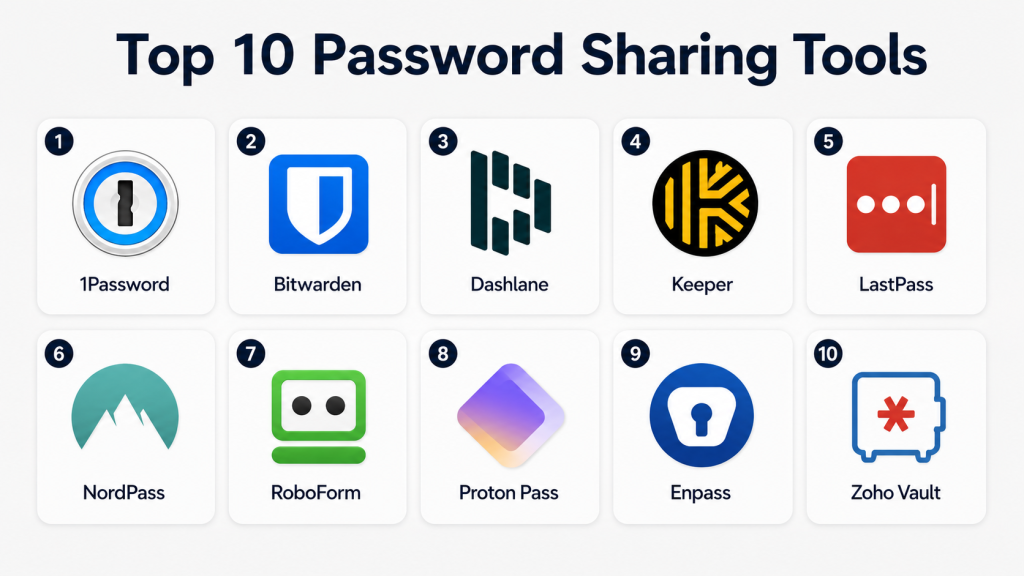
Top 10 Password Sharing Tools Tools
1 — 1Password
Short description: 1Password is a widely used password manager for individuals, families, teams, and enterprises. It is strong for secure vault sharing, employee onboarding, business access control, and cross-device password management.
Key Features
- Encrypted vaults for personal and shared credentials.
- Team and business plans with admin controls.
- Secure password sharing through vault-based access.
- Browser extensions and apps across major platforms.
- Password generator and autofill.
- Watchtower-style password health and breach alerts.
- Business features for access management and reporting.
Pros
- Clean user experience for both technical and non-technical teams.
- Strong fit for businesses that need organized vault sharing.
- Good cross-platform coverage for distributed teams.
Cons
- Advanced enterprise features may require higher-tier plans.
- Some users may need training to structure vaults properly.
- Pricing may feel higher for very small teams.
Platforms / Deployment
Web / Windows / macOS / Linux / iOS / Android
Cloud-based deployment
Security & Compliance
1Password is known for strong encryption, MFA, admin controls, SSO options, and audit-related features in business plans. Specific compliance certifications may vary by plan and region, so buyers should verify current documentation before purchase.
Integrations & Ecosystem
1Password works well in business environments where teams use browsers, identity providers, developer workflows, and SaaS tools. It is especially useful for companies that need both human-friendly password sharing and administrative oversight.
- Browser extensions for major browsers.
- SSO and identity provider support in business environments.
- Developer-focused secrets and command-line workflows.
- Directory and user-management support.
- Integrations for IT and security workflows.
Support & Community
1Password provides strong documentation, onboarding materials, business support options, and a mature user base. Enterprise support depends on the selected plan.
2 — Bitwarden
Short description: Bitwarden is a popular password manager known for open-source transparency, affordable pricing, and strong team sharing features. It is suitable for individuals, small businesses, developers, and security-conscious teams.
Key Features
- Open-source password management approach.
- Secure vaults and shared collections.
- Password generator and autofill.
- Browser extensions and mobile apps.
- Business plans with admin controls.
- Self-hosting option for teams that need more control.
- API and directory integration options.
Pros
- Strong value for individuals and teams.
- Open-source model builds trust with technical users.
- Self-hosting option is useful for control-focused organizations.
Cons
- Interface may feel less polished than some premium tools.
- Advanced enterprise governance may need careful setup.
- Non-technical teams may require onboarding support.
Platforms / Deployment
Web / Windows / macOS / Linux / iOS / Android
Cloud / Self-hosted / Hybrid
Security & Compliance
Bitwarden supports strong encryption, MFA, SSO options, audit logs, policies, and role-based sharing in business plans. Publicly stated compliance details should be verified based on current plan and documentation.
Integrations & Ecosystem
Bitwarden has a flexible ecosystem for both regular users and technical teams. Its open-source nature, browser support, and API options make it useful for developers and IT teams.
- Browser extensions for common browsers.
- Directory connector options.
- SSO integration options.
- API and command-line capabilities.
- Self-hosting for technical teams.
Support & Community
Bitwarden has strong documentation and an active open-source community. Business support varies by plan, with enterprise options available for larger teams.
3 — Dashlane
Short description: Dashlane is a password manager focused on business password security, simple sharing, employee protection, and password health visibility. It is useful for teams that want a polished experience with security reporting.
Key Features
- Secure password vault and autofill.
- Password sharing for individuals and teams.
- Password health dashboard.
- Dark web monitoring features in some plans.
- Admin console for business users.
- SSO and provisioning options in business tiers.
- Cross-device password access.
Pros
- Easy for business users to understand and adopt.
- Strong password health visibility.
- Good fit for teams that want simple security controls.
Cons
- Some advanced features may depend on plan level.
- Self-hosting is not the main deployment model.
- May be less flexible for highly technical self-managed environments.
Platforms / Deployment
Web / Windows / macOS / iOS / Android / browser extensions
Cloud-based deployment
Security & Compliance
Dashlane supports encryption, MFA, business admin policies, secure sharing, and SSO-related capabilities in business plans. Specific certifications should be checked directly before procurement.
Integrations & Ecosystem
Dashlane fits well with teams that want password management connected to user onboarding, identity workflows, and browser-based productivity.
- Browser extensions.
- Identity provider integrations.
- Admin console for team management.
- Password health and monitoring workflows.
- Business reporting features.
Support & Community
Dashlane offers documentation, business onboarding resources, and support channels depending on the selected plan. Community depth is moderate compared with open-source tools.
#4 — Keeper
Short description: Keeper is a security-focused password management platform for individuals, teams, enterprises, and privileged access use cases. It is strong for organizations that need secure sharing, admin controls, and deeper security features.
Key Features
- Encrypted password vaults.
- Shared folders and role-based access.
- Admin console for business users.
- MFA and SSO support in business plans.
- Audit logs and reporting features.
- Secrets management and privileged access-related capabilities.
- Secure file and record storage options.
Pros
- Strong security-focused feature set.
- Good fit for enterprise and regulated environments.
- Useful for both password management and broader credential control.
Cons
- Feature depth may feel complex for very small teams.
- Some advanced modules may increase total cost.
- Setup may require planning for roles and policies.
Platforms / Deployment
Web / Windows / macOS / Linux / iOS / Android
Cloud-based deployment
Security & Compliance
Keeper is known for encryption, MFA, RBAC, audit logs, SSO, and enterprise security controls. Specific compliance claims should be validated against current official documentation and plan details.
Integrations & Ecosystem
Keeper works well in enterprise environments where password management connects with identity, security, and privileged access workflows.
- SSO integrations.
- Directory and provisioning support.
- Browser extensions.
- Secrets management ecosystem.
- Enterprise reporting and policy controls.
Support & Community
Keeper provides documentation, onboarding resources, and business support options. Enterprise customers can usually access more structured support and deployment guidance.
5 — LastPass
Short description: LastPass is one of the most recognized password managers for individuals and businesses. It provides password vaults, secure sharing, admin controls, autofill, and business password management features.
Key Features
- Secure password vault.
- Password generator and autofill.
- Shared folders for teams.
- Business admin dashboard.
- MFA options.
- Security dashboard for password health.
- Directory and SSO-related features in business plans.
Pros
- Familiar brand with broad adoption.
- Easy onboarding for many general business users.
- Good basic and business password sharing features.
Cons
- Buyers may want to carefully review past security history and current controls.
- Some advanced business features depend on plan.
- Security-conscious teams may compare alternatives closely before selecting.
Platforms / Deployment
Web / Windows / macOS / Linux / iOS / Android / browser extensions
Cloud-based deployment
Security & Compliance
LastPass offers encryption, MFA, admin controls, secure sharing, SSO-related features, and activity visibility in business plans. Compliance and security posture should be reviewed carefully before purchase.
Integrations & Ecosystem
LastPass is designed for mainstream adoption and integrates with common browsers, identity providers, and business administration workflows.
- Browser extensions.
- SSO options.
- Directory integrations.
- Admin reporting.
- Team sharing features.
Support & Community
LastPass provides documentation, support resources, and business support depending on plan. Because of its wide adoption, many users are already familiar with its basic workflows.
6 — NordPass
Short description: NordPass is a password manager from the Nord security ecosystem. It is suitable for individuals, small teams, and businesses that want simple secure sharing, password health checks, and cross-device access.
Key Features
- Encrypted password vault.
- Secure item sharing.
- Password generator.
- Autofill and autosave.
- Data breach scanner in some plans.
- Business admin tools.
- Cross-platform apps and browser extensions.
Pros
- Simple and clean interface.
- Good fit for small teams and general business users.
- Strong value when combined with broader security needs.
Cons
- Enterprise depth may not match larger IAM-focused platforms.
- Some features vary by plan.
- Advanced customization may be limited for complex organizations.
Platforms / Deployment
Web / Windows / macOS / Linux / iOS / Android
Cloud-based deployment
Security & Compliance
NordPass supports encryption, MFA, secure sharing, and business administration features. Specific compliance certifications should be verified before enterprise procurement.
Integrations & Ecosystem
NordPass fits teams that want simple password management with common browser and device support. It may also appeal to companies already using other Nord security products.
- Browser extensions.
- Business admin console.
- Cross-device sync.
- Secure sharing workflows.
- Identity-related business controls in selected plans.
Support & Community
NordPass offers documentation and customer support options. Community depth is moderate, but the broader Nord brand is well recognized.
7 — RoboForm
Short description: RoboForm is a long-running password manager known for form filling, password storage, and secure sharing. It is useful for individuals, families, and small teams that want reliable autofill and password organization.
Key Features
- Password vault and autofill.
- Strong form-filling capabilities.
- Secure password sharing.
- Password generator.
- Browser extensions.
- Cross-device synchronization.
- Business admin controls in team plans.
Pros
- Strong autofill and form-filling experience.
- Good option for users who want practical daily convenience.
- Often suitable for individuals and small teams.
Cons
- Interface may feel traditional compared with newer tools.
- Enterprise governance may be less advanced than security-first platforms.
- Some teams may prefer more modern collaboration workflows.
Platforms / Deployment
Web / Windows / macOS / iOS / Android / browser extensions
Cloud-based deployment
Security & Compliance
RoboForm supports encryption, MFA, secure sharing, and business administration features. Specific certifications and compliance details are not always clearly visible for every buyer scenario.
Integrations & Ecosystem
RoboForm is strongest in browser-based workflows where users need fast login, form filling, and secure credential storage.
- Browser extensions.
- Desktop and mobile apps.
- Secure sharing features.
- Business user management.
- Password generation and autofill workflows.
Support & Community
RoboForm provides documentation and customer support options. It has a long-standing user base, though community activity may be less visible than open-source tools.
8 — Proton Pass
Short description: Proton Pass is a privacy-focused password manager from Proton. It is useful for individuals, privacy-conscious users, and teams that want password management connected to a broader privacy ecosystem.
Key Features
- Password vault and secure notes.
- Email alias support.
- Passkey support.
- 2FA code storage in some plans.
- Browser extensions and mobile apps.
- Secure sharing features.
- Privacy-focused ecosystem.
Pros
- Strong privacy-focused positioning.
- Useful email alias features for reducing exposure.
- Good fit for users already using Proton services.
Cons
- Business and enterprise maturity may vary compared with older password managers.
- Some advanced admin features may be limited by plan.
- Not always the first choice for complex enterprise deployments.
Platforms / Deployment
Web / Windows / macOS / Linux / iOS / Android / browser extensions
Cloud-based deployment
Security & Compliance
Proton Pass supports encryption, secure vaults, MFA-related workflows, passkeys, and privacy-focused account protection. Enterprise compliance details should be verified directly.
Integrations & Ecosystem
Proton Pass is most useful for users who value privacy and want password management connected to email aliases and secure digital identity habits.
- Proton ecosystem integration.
- Browser extensions.
- Mobile apps.
- Email alias workflows.
- Passkey and 2FA-related support.
Support & Community
Proton provides documentation and support resources. Community interest is strong among privacy-focused users, though enterprise support should be evaluated based on plan.
9 — Enpass
Short description: Enpass is a password manager that gives users control over where their vault data is stored. It is suitable for individuals and teams that prefer local-first or cloud-storage-controlled password management.
Key Features
- Password vault and secure notes.
- Local vault storage model.
- Optional sync through user-selected cloud providers.
- Password generator.
- Autofill support.
- Cross-platform apps.
- Secure sharing options.
Pros
- Good option for users who want more storage control.
- Works across many platforms.
- Useful for privacy-conscious individuals and smaller teams.
Cons
- Team administration may not be as deep as enterprise-first tools.
- Setup can be more manual depending on sync choice.
- Some users may prefer fully managed cloud convenience.
Platforms / Deployment
Windows / macOS / Linux / iOS / Android / browser extensions
Local-first with optional cloud sync
Security & Compliance
Enpass supports encrypted vaults and local-first password storage. Business compliance details are not always publicly clear, so buyers should verify before enterprise use.
Integrations & Ecosystem
Enpass works best for users who want device-based password management with flexible sync choices instead of a fully provider-hosted vault model.
- Browser extensions.
- Desktop and mobile apps.
- Optional sync with cloud storage providers.
- Password generation.
- Autofill workflows.
Support & Community
Enpass provides documentation and support resources. It has a steady user base, especially among users who prefer control over vault storage.
10 — Zoho Vault
Short description: Zoho Vault is a business-focused password manager that works well for teams already using Zoho products. It supports secure sharing, admin policies, user management, and business password control.
Key Features
- Secure password vaults.
- Team password sharing.
- Role-based access controls.
- Admin dashboard.
- Password policies.
- SSO and directory-related options in business plans.
- Integration with Zoho ecosystem.
Pros
- Strong fit for businesses using Zoho apps.
- Practical password sharing and admin controls.
- Good value for SMB and mid-market teams.
Cons
- May be less attractive for companies outside the Zoho ecosystem.
- Interface and workflows may require setup planning.
- Enterprise-grade expectations should be validated by plan.
Platforms / Deployment
Web / iOS / Android / browser extensions
Cloud-based deployment
Security & Compliance
Zoho Vault supports encryption, secure sharing, role-based access, password policies, and business administration features. Specific compliance details should be verified before purchase.
Integrations & Ecosystem
Zoho Vault is useful for teams that already rely on Zoho applications and want password management connected to broader business workflows.
- Zoho ecosystem integration.
- Browser extensions.
- SSO options.
- User and role management.
- Business password sharing controls.
Support & Community
Zoho provides documentation, support channels, and business support options depending on plan. Existing Zoho customers may benefit from familiar account and admin workflows.
Comparison Table
| Tool Name | Best For | Platform(s) Supported | Deployment | Standout Feature | Public Rating |
|---|---|---|---|---|---|
| 1Password | SMBs, enterprises, distributed teams | Web, Windows, macOS, Linux, iOS, Android | Cloud | Shared vaults and business access controls | N/A |
| Bitwarden | Developers, SMBs, open-source-focused teams | Web, Windows, macOS, Linux, iOS, Android | Cloud / Self-hosted / Hybrid | Open-source model and self-hosting option | N/A |
| Dashlane | Business teams needing simple security visibility | Web, desktop, mobile, browser extensions | Cloud | Password health and business security dashboard | N/A |
| Keeper | Security-focused teams and enterprises | Web, Windows, macOS, Linux, iOS, Android | Cloud | Strong enterprise security and admin controls | N/A |
| LastPass | General business users and teams | Web, desktop, mobile, browser extensions | Cloud | Familiar password sharing and admin workflows | N/A |
| NordPass | Small teams and general business users | Web, Windows, macOS, Linux, iOS, Android | Cloud | Simple secure sharing and clean interface | N/A |
| RoboForm | Individuals, families, and small teams | Web, Windows, macOS, iOS, Android | Cloud | Strong autofill and form filling | N/A |
| Proton Pass | Privacy-focused users and teams | Web, desktop, mobile, browser extensions | Cloud | Email aliases and privacy ecosystem | N/A |
| Enpass | Privacy-conscious users wanting storage control | Windows, macOS, Linux, iOS, Android | Local-first / Optional cloud sync | User-controlled vault storage | N/A |
| Zoho Vault | Zoho users, SMBs, and mid-market teams | Web, iOS, Android, browser extensions | Cloud | Zoho ecosystem and business password sharing | N/A |
Evaluation & Scoring of Password Sharing Tools
| Tool Name | Core (25%) | Ease (15%) | Integrations (15%) | Security (10%) | Performance (10%) | Support (10%) | Value (15%) | Weighted Total |
|---|---|---|---|---|---|---|---|---|
| 1Password | 9 | 9 | 9 | 9 | 9 | 9 | 8 | 8.80 |
| Bitwarden | 9 | 8 | 8 | 9 | 8 | 8 | 10 | 8.60 |
| Dashlane | 8 | 9 | 8 | 8 | 8 | 8 | 8 | 8.20 |
| Keeper | 9 | 8 | 8 | 9 | 9 | 8 | 8 | 8.45 |
| LastPass | 8 | 8 | 8 | 7 | 8 | 8 | 8 | 7.90 |
| NordPass | 8 | 9 | 7 | 8 | 8 | 8 | 8 | 8.00 |
| RoboForm | 7 | 8 | 6 | 7 | 8 | 7 | 8 | 7.25 |
| Proton Pass | 7 | 8 | 6 | 8 | 8 | 7 | 8 | 7.35 |
| Enpass | 7 | 7 | 6 | 8 | 8 | 7 | 8 | 7.25 |
| Zoho Vault | 8 | 8 | 8 | 8 | 8 | 8 | 9 | 8.15 |
These scores are comparative, not absolute. A higher score does not mean the tool is best for every business. For example, Bitwarden may be better for technical teams, while 1Password may be easier for broad business adoption. Enterprises should give more weight to SSO, audit logs, access controls, and compliance validation. Small teams may care more about price, simplicity, and fast onboarding.
Which Password Sharing Tools Tool Is Right for You?
Solo / Freelancer
Solo users should focus on ease of use, browser autofill, mobile access, password generation, and simple secure sharing. Good options include Bitwarden, 1Password, Proton Pass, NordPass, RoboForm, and Enpass. If privacy is a major concern, Proton Pass or Enpass may be attractive. If you want a simple polished experience, 1Password or NordPass may feel easier.
SMB
Small and medium businesses need shared vaults, admin controls, onboarding support, and recovery options. 1Password, Bitwarden, Dashlane, Keeper, Zoho Vault, and NordPass are strong choices. Zoho Vault is especially useful for teams already using Zoho apps. Bitwarden is strong when value and flexibility matter.
Mid-Market
Mid-market teams should prioritize SSO, directory integration, role-based sharing, audit logs, and password health reporting. 1Password, Keeper, Dashlane, Bitwarden, and Zoho Vault are practical options. The best choice depends on whether the company values usability, technical flexibility, or enterprise security controls.
Enterprise
Enterprises should evaluate password tools as part of a larger identity and access management strategy. Keeper, 1Password, Bitwarden Enterprise, Dashlane Business, and Zoho Vault can be considered depending on security, compliance, integration, and support requirements. Enterprises should validate SSO, SCIM, audit logs, SIEM integration, admin roles, and compliance documentation before final selection.
Budget vs Premium
For budget-conscious users, Bitwarden, Zoho Vault, Enpass, and RoboForm often deserve attention. For premium business experience, 1Password, Keeper, and Dashlane are strong options. Budget should not be judged only by subscription cost; also consider onboarding time, security risk, admin efficiency, and support quality.
Feature Depth vs Ease of Use
If your team wants the easiest experience, 1Password, Dashlane, NordPass, and RoboForm may be comfortable. If you need deeper controls, Keeper, Bitwarden, and Zoho Vault may be better. Technical teams may accept more setup work in exchange for flexibility and control.
Integrations & Scalability
For growing companies, integrations matter. Look for SSO, directory sync, browser extensions, mobile apps, APIs, reporting, and role-based access. 1Password, Keeper, Bitwarden, Dashlane, and Zoho Vault are stronger choices when scalability is important.
Security & Compliance Needs
Security-conscious teams should review encryption model, MFA, admin policies, audit logs, recovery controls, access revocation, and compliance documentation. Do not rely only on marketing claims. Run a pilot, check documentation, test access removal, and confirm whether the tool fits your internal security policy.
Frequently Asked Questions
1. What is a Password Sharing Tool?
A Password Sharing Tool helps users securely store and share passwords without sending them through email, chat, or spreadsheets. It usually includes encrypted vaults, access permissions, password generation, and admin controls.
2. Are Password Sharing Tools safe?
Yes, good tools are much safer than manual sharing when configured properly. Buyers should check encryption, MFA, access controls, audit logs, and recovery settings before rollout.
3. What pricing model do these tools usually follow?
Most tools use per-user monthly or annual pricing. Some offer free personal plans, family plans, team plans, business plans, and enterprise plans with advanced features.
4. Which tool is best for small businesses?
Bitwarden, 1Password, Zoho Vault, Dashlane, NordPass, and Keeper are strong small-business options. The right choice depends on budget, admin needs, integrations, and ease of use.
5. What is the biggest mistake teams make with password sharing?
The biggest mistake is giving broad access without clear ownership. Teams should create shared vaults carefully, review access regularly, and remove users immediately when roles change.
6. Do these tools replace SSO?
Not always. SSO is excellent for supported apps, but many teams still need password tools for shared accounts, legacy systems, vendor portals, client credentials, and non-SSO applications.
7. Can password managers scale for enterprise use?
Yes, many tools support enterprise needs such as SSO, directory sync, audit logs, admin policies, and role-based access. Enterprises should validate these features before purchase.
8. How long does onboarding usually take?
Small teams can often onboard quickly, but larger teams need planning. A good rollout includes vault structure, access rules, user training, browser extension setup, and security policy alignment.
9. What integrations should buyers check?
Buyers should check browser extensions, SSO, directory services, provisioning, APIs, SIEM support, mobile apps, and collaboration workflows. Integration needs vary by company size.
10. What are alternatives to Password Sharing Tools?
Alternatives include SSO platforms, privileged access management tools, secrets managers, identity governance tools, and manual access control processes. However, most teams still need a password manager for practical credential sharing.
Conclusion
Password Sharing Tools are now an important part of modern business security. They help teams reduce risky habits such as sending passwords over chat, keeping credentials in spreadsheets, or using the same login across multiple people. The best tool depends on your company size, security needs, budget, technical maturity, and daily workflows. 1Password and Keeper are strong for structured business use, Bitwarden is excellent for value and flexibility, Dashlane is simple for security visibility, Zoho Vault fits Zoho-based teams, and Proton Pass or Enpass may appeal to privacy-focused users. Before choosing one tool, shortlist two or three options, run a pilot with real users, test secure sharing, validate integrations, review admin controls, and confirm security requirements with your IT or compliance team.
