Introduction
Parental control software helps parents and guardians manage how children use phones, tablets, computers, apps, games, websites, and online services. These tools are designed to support safer digital habits by giving families controls for screen time, web filtering, app blocking, location visibility, activity reports, search monitoring, and device usage rules. As children spend more time across social platforms, streaming apps, gaming services, messaging tools, and learning portals, parental control software helps create boundaries without requiring constant manual checking.
Real-world use cases include: setting screen-time limits for school nights, blocking adult or unsafe websites, managing app downloads, tracking a child’s device location, monitoring online search behavior, and creating healthy device routines for families. Buyers should evaluate platform support, filtering accuracy, ease of use, child privacy controls, location features, app blocking, reporting quality, family sharing, pricing, and support quality.
Best for: parents, guardians, caregivers, schools, and families who want practical visibility into children’s digital activity and safer device usage rules. Not ideal for: families that only need simple device-level controls already included in iOS, Android, Windows, or macOS; in those cases, built-in parental controls may be enough.
Key Trends in Parental Control Software
- Balanced monitoring is becoming more important: Parents want safety controls without making children feel constantly watched.
- Screen-time management is now a core feature: Families increasingly need flexible daily limits, bedtime schedules, school-hour restrictions, and app-specific controls.
- Location safety features are widely expected: Many parental control tools now include real-time location tracking, location history, and geofencing alerts.
- Social media awareness is growing: Parents want better visibility into risks from messaging apps, social platforms, gaming chats, and online communities.
- AI-assisted alerts are becoming more common: Some tools are adding smarter risk detection for concerning searches, unsafe content, or harmful online behavior.
- Cross-platform support is essential: Families often use a mix of iPhones, Android phones, tablets, Chromebooks, Windows PCs, and Macs.
- Child privacy is a stronger buying factor: More families want tools that support safety while avoiding unnecessary invasive monitoring.
- Built-in operating system controls are improving: Apple, Google, Microsoft, and Amazon provide native controls, but third-party tools still offer broader management.
- Subscription bundles are increasing: Many parental control tools are included in broader security, antivirus, VPN, or family protection suites.
- Digital wellbeing is replacing simple blocking: Modern parental control strategies focus on routines, conversations, and healthier habits, not just restrictions.
How We Selected Parental Control Software
This list is based on practical evaluation logic for families, parents, guardians, and caregivers who need reliable digital safety tools.
- Market adoption and recognition: Widely used and trusted parental control tools were prioritized.
- Feature completeness: Screen time, app blocking, web filtering, location tracking, reports, and alerts were evaluated.
- Platform support: Tools that support multiple operating systems and device types were ranked more favorably.
- Ease of setup: Family tools must be simple enough for non-technical parents to configure.
- Filtering quality: Strong content filtering, category blocking, and safe search features were considered.
- Location and geofencing: Real-time location, alerts, and location history were evaluated where available.
- Child privacy and transparency: Tools with more balanced monitoring approaches were considered stronger.
- Family fit: Multi-child profiles, custom rules, schedules, and age-based controls were reviewed.
- Value for money: Pricing flexibility, device limits, and bundled security features were considered.
- Support and documentation: Clear onboarding, help resources, and support availability were included in the evaluation.
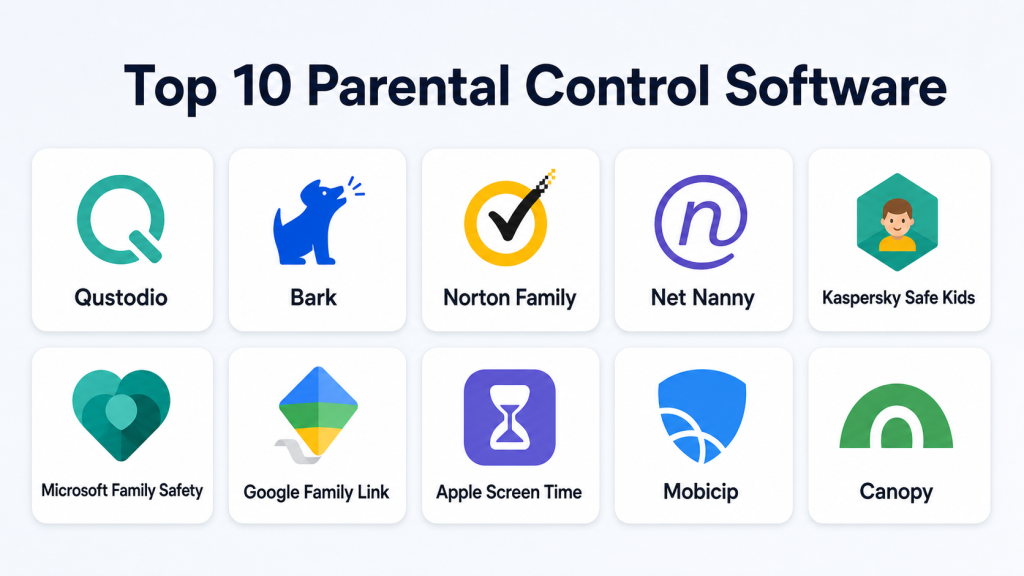
Top 10 Parental Control Software
#1 — Qustodio
Short description: Qustodio is a popular parental control platform designed for families that want strong visibility into screen time, web activity, app usage, and location. It supports multiple devices and gives parents a central dashboard to manage rules for each child. Qustodio is known for its clean interface, detailed activity reports, web filtering, app blocking, and location tracking features. It works well for families with children across different age groups because rules can be customized by profile. Parents can use it to set daily limits, block unsafe content, and understand how devices are being used. It is best for families that want a complete, easy-to-use parental control solution.
Key Features
- Screen-time limits and schedules
- Web filtering and safe browsing controls
- App blocking and app usage reporting
- Location tracking and family locator
- Activity monitoring dashboard
- Custom child profiles
- Alerts and reporting tools
Pros
- Strong all-around parental control feature set
- Easy dashboard for managing multiple children
- Good balance of monitoring, filtering, and time limits
Cons
- Some advanced features require paid plans
- Features may vary by operating system
- Older children may find restrictions limiting if not discussed openly
Platforms / Deployment
Web / Windows / macOS / iOS / Android / Chromebook support may vary
Cloud
Security & Compliance
Qustodio provides account controls, parent login protection, device management, and privacy-focused family monitoring features. Specific compliance certifications are not publicly stated for consumer use.
Integrations & Ecosystem
Qustodio is mainly focused on device-level parental control rather than broad third-party app integrations. Its ecosystem is centered on family dashboards, child profiles, mobile apps, and web filtering.
- Parent dashboard
- Child device apps
- Browser and web filtering controls
- Location services
- Email activity reports
- Multi-device family management
Support & Community
Qustodio offers documentation, setup guides, help resources, and support options. Its support experience may vary by plan, but the tool is generally easy for families to start using.
#2 — Bark
Short description: Bark is a parental control tool focused on online safety alerts, social media monitoring, screen-time management, web filtering, and location features. It is especially known for helping parents identify potential risks in messages, emails, searches, and social platforms where supported. Bark is designed for families that want alerts for concerning activity rather than reading every message manually. This makes it useful for parents who want a less invasive but still safety-focused approach. Bark also supports screen-time schedules, website blocking, and location check-ins. It is best for families concerned about online communication risks and digital wellbeing.
Key Features
- Online safety alerts
- Social media and communication monitoring where supported
- Screen-time schedules
- Web filtering
- Location check-ins and alerts
- App and website blocking
- Parent dashboard
Pros
- Strong focus on safety alerts
- Less manual monitoring than fully invasive tools
- Useful for social media and communication risk awareness
Cons
- Supported monitoring varies by app and device
- Setup may take more effort for some platforms
- Not ideal for families that only need basic screen-time limits
Platforms / Deployment
Web / iOS / Android / Windows / macOS / Chromebook support may vary
Cloud
Security & Compliance
Bark provides parent account controls, child profile management, and safety alert workflows. Specific consumer compliance certifications are not publicly stated.
Integrations & Ecosystem
Bark’s ecosystem is built around supported social platforms, communication channels, device apps, and family safety alerts. Availability can vary depending on operating system restrictions and app permissions.
- Social platform monitoring where supported
- Email monitoring where supported
- Text and messaging alerts where supported
- Screen-time controls
- Website filtering
- Location alerts
Support & Community
Bark provides onboarding resources, family safety education, documentation, and support channels. It also has strong awareness among parents looking for social media safety tools.
#3 — Norton Family
Short description: Norton Family is parental control software from the Norton security ecosystem, built for families that want web supervision, time management, search supervision, and activity reporting. It is especially useful for parents who already use Norton security products and want family controls from the same provider. Norton Family helps parents set rules around websites, school-time device use, and online activity. It focuses on helping children build safer browsing habits while giving parents visibility into important activity signals. The tool is practical for households that want parental controls bundled with broader cybersecurity protection. It is best for families already invested in Norton’s ecosystem.
Key Features
- Web supervision
- Time supervision
- Search supervision
- School-time controls
- Activity reports
- Parent dashboard
- Location supervision on supported devices
Pros
- Strong fit for Norton security users
- Useful web and time management features
- Clear family-focused reporting
Cons
- Platform support may be more limited than some competitors
- Best value may depend on Norton bundle pricing
- Not as social-media-focused as Bark
Platforms / Deployment
Web / Windows / Android / iOS support may vary
Cloud
Security & Compliance
Norton Family is part of the Norton consumer security ecosystem and includes account-based parental controls and family device management. Specific compliance details for parental control use are not publicly stated.
Integrations & Ecosystem
Norton Family fits naturally into the Norton security ecosystem. It is most useful for families that want parental control features alongside antivirus, identity protection, and device security tools.
- Norton account ecosystem
- Parent dashboard
- Device management
- Web filtering
- Search supervision
- Family activity reports
Support & Community
Norton provides broad documentation, help resources, and customer support options. Support availability may depend on the subscription and region.
#4 — Net Nanny
Short description: Net Nanny is a well-known parental control solution focused on web filtering, screen-time management, app blocking, and family device protection. It is designed for parents who want strong filtering and real-time visibility into online activity. Net Nanny helps block unsafe websites, manage app access, and create internet schedules for children. Its content filtering approach is useful for families concerned about inappropriate content exposure. The tool also supports alerts and reports to help parents understand digital behavior. Net Nanny is best for families that prioritize web filtering and content safety.
Key Features
- Web filtering
- Screen-time scheduling
- App blocking
- Internet filtering controls
- Parent alerts and reports
- Family dashboard
- Location tracking on supported plans
Pros
- Strong web filtering focus
- Good for content safety and browsing control
- Useful reports for parents
Cons
- Interface may not feel as modern as newer tools
- Features can vary by device type
- May require tuning to avoid overblocking
Platforms / Deployment
Windows / macOS / iOS / Android
Cloud
Security & Compliance
Net Nanny provides parent account controls, device-level filtering, and family management features. Specific compliance certifications for consumer use are not publicly stated.
Integrations & Ecosystem
Net Nanny focuses on device apps, parent dashboards, and web filtering rather than broad third-party integrations. It is strongest as a dedicated family internet safety tool.
- Parent dashboard
- Web filtering engine
- App blocking controls
- Device apps
- Alerts and reports
- Location features where supported
Support & Community
Net Nanny provides documentation, setup resources, and customer support options. Its long-standing brand recognition gives it familiarity among parents.
#5 — Kaspersky Safe Kids
Short description: Kaspersky Safe Kids is a parental control tool designed for web filtering, screen-time management, app supervision, and location tracking. It is part of the broader Kaspersky security ecosystem and is often chosen by families looking for a security-focused parental control option. Parents can manage device rules, view activity reports, block inappropriate content, and set usage schedules. It can be useful for families that want straightforward safety features without an overly complex interface. The tool provides both free and paid functionality depending on needs. Kaspersky Safe Kids is best for families that want affordable parental controls with security-suite alignment.
Key Features
- Web filtering
- Screen-time controls
- App usage supervision
- Location tracking
- Battery status alerts on supported devices
- Activity reports
- Age-based settings
Pros
- Affordable parental control option
- Useful web and app supervision
- Good fit for existing Kaspersky users
Cons
- Availability and trust perception may vary by region
- Interface may feel more utility-focused than premium tools
- Some advanced features require paid plans
Platforms / Deployment
Windows / macOS / iOS / Android
Cloud
Security & Compliance
Kaspersky Safe Kids provides parent account controls, device supervision, and family safety features. Specific consumer compliance certifications for this product are not publicly stated.
Integrations & Ecosystem
Kaspersky Safe Kids works within the broader Kaspersky consumer security ecosystem. It focuses on web filtering, app supervision, and location safety rather than external business integrations.
- Kaspersky account ecosystem
- Device apps
- Parent dashboard
- Web filtering
- App supervision
- Location features
Support & Community
Kaspersky provides documentation, support articles, and customer support channels. Support experience can vary by region and subscription type.
#6 — Microsoft Family Safety
Short description: Microsoft Family Safety is a family safety and parental control tool designed for users in the Microsoft ecosystem. It helps parents manage screen time, app and game limits, web filtering, activity reports, and family location features. It is especially useful for households using Windows PCs, Xbox consoles, Microsoft Edge, and Microsoft accounts. Parents can create family groups and apply rules across supported Microsoft services. It works best when children use Microsoft accounts consistently across devices. Microsoft Family Safety is a strong built-in choice for Windows and Xbox families.
Key Features
- Screen-time limits
- App and game limits
- Web and search filtering
- Activity reporting
- Family location features
- Microsoft account family groups
- Xbox and Windows alignment
Pros
- Strong fit for Windows and Xbox households
- Built into the Microsoft ecosystem
- Useful for app, game, and web controls
Cons
- Best experience requires Microsoft accounts
- Less flexible outside Microsoft ecosystem
- Advanced monitoring is limited compared with dedicated tools
Platforms / Deployment
Web / Windows / Xbox / iOS / Android
Cloud
Security & Compliance
Microsoft Family Safety uses Microsoft account controls, family group permissions, and device-based policy settings. Consumer parental control compliance details are not positioned like dedicated SaaS compliance certifications.
Integrations & Ecosystem
Microsoft Family Safety integrates strongly with Microsoft accounts, Windows, Xbox, Microsoft Edge, and family location features. It is most valuable when the household already uses Microsoft services.
- Microsoft accounts
- Windows device controls
- Xbox limits
- Microsoft Edge web filtering
- Family location features
- Activity reports
Support & Community
Microsoft provides broad documentation, help resources, and community support. Support availability depends on Microsoft account and product support channels.
#7 — Google Family Link
Short description: Google Family Link is Google’s parental control tool for managing children’s Google accounts and Android devices. It helps parents set screen-time limits, approve app downloads, manage content settings, view device location, and guide safer device usage. Family Link is especially useful for families using Android phones, tablets, Chromebooks, and Google accounts. It is simple, accessible, and built into Google’s consumer ecosystem. While it may not offer the same depth as premium third-party tools, it is practical for everyday family controls. Google Family Link is best for Android-first families who want no-extra-cost parental controls.
Key Features
- Screen-time limits
- App approval controls
- Content restrictions
- Device location
- Google account supervision
- Bedtime schedules
- Activity visibility
Pros
- Strong fit for Android and Chromebook users
- No separate parental control subscription required
- Easy setup for Google account families
Cons
- Less useful for non-Google ecosystems
- Advanced monitoring is limited
- Teen account controls may differ by age and region
Platforms / Deployment
Web / Android / Chromebook / iOS parent app support
Cloud
Security & Compliance
Google Family Link uses Google account supervision, parent permissions, device controls, and account-based safety settings. Consumer compliance details are not positioned as dedicated parental control certifications.
Integrations & Ecosystem
Google Family Link integrates with Android, Chromebooks, Google Play, Google accounts, and Google content settings. It is strongest for families already using Google services.
- Google accounts
- Android devices
- Chromebook supervision
- Google Play approvals
- Location features
- Content settings
Support & Community
Google provides help center documentation, setup guides, and community support resources. Support is generally self-service oriented.
#8 — Apple Screen Time
Short description: Apple Screen Time is Apple’s built-in parental control and digital wellbeing feature for iPhone, iPad, and Mac users. It allows families to set app limits, downtime schedules, communication limits, content restrictions, and purchase approvals. Apple Screen Time is especially useful for Apple-first families because it works natively with Family Sharing and Apple IDs. It is simple to use and does not require a separate subscription for core controls. However, it may not provide the same depth of reporting, filtering, or cross-platform coverage as dedicated parental control software. Apple Screen Time is best for families using mostly Apple devices.
Key Features
- App limits
- Downtime schedules
- Content and privacy restrictions
- Communication limits
- Purchase approval through Family Sharing
- Usage reports
- Native Apple ecosystem controls
Pros
- Built into Apple devices
- No extra software needed for basic controls
- Strong fit for iPhone, iPad, and Mac households
Cons
- Limited outside the Apple ecosystem
- Reporting is less advanced than dedicated tools
- Some children may find workarounds if settings are weak
Platforms / Deployment
iOS / iPadOS / macOS
Device-native / iCloud
Security & Compliance
Apple Screen Time uses Apple ID, Family Sharing, device controls, and privacy settings. Consumer compliance certifications are not positioned like third-party parental control products.
Integrations & Ecosystem
Apple Screen Time integrates with Apple IDs, Family Sharing, App Store approvals, iCloud, iPhone, iPad, and Mac settings. It is strongest as a native Apple family control system.
- Apple Family Sharing
- App Store purchase approval
- iCloud settings
- iOS app limits
- macOS restrictions
- Communication controls
Support & Community
Apple provides documentation, device setup guides, and customer support resources. Community help is broad because Screen Time is built into Apple devices.
#9 — Mobicip
Short description: Mobicip is parental control software focused on screen time, app blocking, web filtering, location tracking, and family activity visibility. It is designed for parents who want flexible rules across multiple children and devices. Mobicip can help families create healthy internet habits by setting schedules, filtering content, and reviewing activity reports. It is useful for households that need a balance between safety controls and daily digital routines. The platform supports common consumer devices and provides parent-friendly dashboards. Mobicip is best for families that want flexible filtering and screen-time management across mixed devices.
Key Features
- Screen-time schedules
- Web filtering
- App blocking
- Location tracking
- Activity reports
- Multi-child profiles
- Parent dashboard
Pros
- Good balance of filtering and time controls
- Useful for mixed-device families
- Parent-friendly dashboard
Cons
- Some features depend on device type
- May require setup adjustments for best results
- Less recognized than larger brands
Platforms / Deployment
Windows / macOS / iOS / Android / Chromebook support may vary
Cloud
Security & Compliance
Mobicip provides parent account controls, web filtering, activity reporting, and family device supervision. Specific consumer compliance certifications are not publicly stated.
Integrations & Ecosystem
Mobicip works through device apps, web filtering controls, location services, and parent dashboards. It is designed for family device management rather than business integrations.
- Device apps
- Parent dashboard
- Web filtering
- App controls
- Location features
- Activity reports
Support & Community
Mobicip provides support resources, documentation, and help options. Community visibility is moderate compared with larger parental control brands.
#10 — Canopy
Short description: Canopy is parental control software focused on digital safety, content filtering, screen-time management, and family protection. It is often chosen by parents looking for strong filtering around inappropriate content and safer browsing. Canopy can help families manage online exposure while still allowing children to use devices for school, communication, and entertainment. It is useful for parents who want a more safety-centered approach rather than only basic device limits. The tool also includes features for app management and family rules depending on plan and device. Canopy is best for families prioritizing content protection and safer browsing experiences.
Key Features
- Content filtering
- Screen-time management
- App management
- Safe browsing controls
- Parent dashboard
- Device supervision
- Family protection settings
Pros
- Strong focus on content safety
- Useful for families worried about inappropriate content
- Parent-friendly safety controls
Cons
- Feature depth may vary by platform
- Less broad ecosystem than larger security suites
- May need tuning to balance safety and flexibility
Platforms / Deployment
iOS / Android / Windows / macOS support may vary
Cloud
Security & Compliance
Canopy provides parent account controls, device supervision, and content filtering features. Specific consumer compliance certifications are not publicly stated.
Integrations & Ecosystem
Canopy focuses on device-level safety, filtering, and parental controls. Its ecosystem is centered on family protection rather than broad third-party integrations.
- Parent dashboard
- Device apps
- Content filtering
- App controls
- Screen-time tools
- Family safety settings
Support & Community
Canopy provides customer support resources and setup guidance. Support availability may vary by plan and region.
Comparison Table
| Tool Name | Best For | Platform(s) Supported | Deployment | Standout Feature | Public Rating |
|---|---|---|---|---|---|
| Qustodio | Full-featured family monitoring | Windows, macOS, iOS, Android, Chromebook support may vary | Cloud | Strong dashboard and reports | N/A |
| Bark | Social media and safety alerts | iOS, Android, Windows, macOS, Chromebook support may vary | Cloud | Online risk alerts | N/A |
| Norton Family | Norton security ecosystem users | Windows, Android, iOS support may vary | Cloud | Web and search supervision | N/A |
| Net Nanny | Web filtering and content safety | Windows, macOS, iOS, Android | Cloud | Real-time content filtering | N/A |
| Kaspersky Safe Kids | Affordable security-suite users | Windows, macOS, iOS, Android | Cloud | App and web supervision | N/A |
| Microsoft Family Safety | Windows and Xbox families | Windows, Xbox, iOS, Android, Web | Cloud | Microsoft account controls | N/A |
| Google Family Link | Android and Chromebook families | Android, Chromebook, Web, iOS parent app support | Cloud | Google account supervision | N/A |
| Apple Screen Time | Apple-first families | iOS, iPadOS, macOS | Device-native / iCloud | Native Apple controls | N/A |
| Mobicip | Mixed-device family controls | Windows, macOS, iOS, Android, Chromebook support may vary | Cloud | Flexible family rules | N/A |
| Canopy | Content safety-focused families | iOS, Android, Windows, macOS support may vary | Cloud | Strong content protection focus | N/A |
Evaluation & Scoring of Parental Control Software
| Tool Name | Core (25%) | Ease (15%) | Integrations (15%) | Security (10%) | Performance (10%) | Support (10%) | Value (15%) | Weighted Total |
|---|---|---|---|---|---|---|---|---|
| Qustodio | 9.0 | 8.5 | 8.0 | 8.0 | 8.5 | 8.0 | 8.0 | 8.45 |
| Bark | 8.5 | 8.0 | 8.0 | 8.0 | 8.0 | 8.0 | 7.5 | 8.05 |
| Norton Family | 8.0 | 8.0 | 7.5 | 8.0 | 8.0 | 8.0 | 8.0 | 7.95 |
| Net Nanny | 8.0 | 7.5 | 7.5 | 8.0 | 8.0 | 7.5 | 7.5 | 7.70 |
| Kaspersky Safe Kids | 7.5 | 8.0 | 7.0 | 8.0 | 8.0 | 7.5 | 8.5 | 7.75 |
| Microsoft Family Safety | 7.5 | 8.5 | 8.0 | 8.0 | 8.5 | 8.0 | 9.0 | 8.15 |
| Google Family Link | 7.5 | 8.5 | 8.0 | 8.0 | 8.5 | 7.5 | 9.0 | 8.10 |
| Apple Screen Time | 7.0 | 8.5 | 7.5 | 8.0 | 8.5 | 7.5 | 9.0 | 7.90 |
| Mobicip | 8.0 | 8.0 | 7.5 | 8.0 | 8.0 | 7.5 | 7.5 | 7.85 |
| Canopy | 7.5 | 8.0 | 7.0 | 8.0 | 8.0 | 7.5 | 7.5 | 7.65 |
These scores are comparative and should be interpreted as guidance, not absolute proof of quality. A tool with a lower total may still be the best option for a specific family if it fits the right platform or safety need. For example, Apple Screen Time may be ideal for Apple-only homes, while Google Family Link is practical for Android-first families. Qustodio and Bark are stronger when families need broader monitoring, reporting, or safety alerts.
Which Parental Control Software Is Right for You?
Solo Parent / Guardian
A solo parent or guardian should prioritize easy setup, simple dashboards, alerts, and reliable screen-time controls. Qustodio is a strong all-around option because it combines web filtering, reports, app rules, and location features. Bark is better when online communication and social media safety are the biggest concerns. Google Family Link or Apple Screen Time may be enough if the child uses only one platform ecosystem.
SMB / Small Education Groups
Small education groups, tutoring centers, and family-run learning environments may need basic filtering, time limits, and device rules across shared devices. Microsoft Family Safety is useful for Windows-based learning setups, while Google Family Link works well for Chromebook and Android environments. Qustodio and Mobicip may be better when mixed-device visibility is required. The most important factor is whether the tool can be managed consistently across all devices.
Mid-Market
Mid-market environments such as private schools, coaching centers, and youth programs should be careful when using consumer parental control tools for managed student devices. Built-in device management or education-focused MDM tools may be more appropriate for formal institutions. However, parental control software can still support family-owned devices, after-school programs, or parent-led safety education. In these cases, reporting clarity, privacy boundaries, and administrative control matter most.
Enterprise
Enterprise environments generally should not use consumer parental control software as a substitute for endpoint management, secure web gateways, MDM, or identity governance. For employee devices, enterprise security and compliance tools are more appropriate. However, companies offering family safety benefits or digital wellbeing education may recommend consumer tools to employees for home use. Enterprise buyers should separate home-family use cases from corporate device governance.
Budget vs Premium
Budget-focused families should first evaluate Apple Screen Time, Google Family Link, and Microsoft Family Safety because these tools are built into major ecosystems and may cover basic needs. Premium tools like Qustodio, Bark, Net Nanny, Mobicip, and Canopy are better when families need broader filtering, stronger reports, location features, or multi-platform coverage. Norton Family and Kaspersky Safe Kids may offer value when bundled with broader security suites. Choose premium only when the extra visibility and controls are truly needed.
Feature Depth vs Ease of Use
Qustodio offers a strong balance between depth and usability, making it a good default for many families. Bark is more specialized for communication safety and risk alerts, while Net Nanny and Canopy focus strongly on content filtering. Apple Screen Time, Google Family Link, and Microsoft Family Safety are easier for families already inside those ecosystems. Environments with mixed devices usually benefit from a dedicated third-party tool.
Integrations & Scalability
Parental control software does not usually integrate like business SaaS tools. Instead, scalability depends on how well it supports multiple children, devices, operating systems, and household rules. Families with one ecosystem may scale well with Apple, Google, or Microsoft tools. Families with mixed devices should consider Qustodio, Bark, Mobicip, Norton Family, or Net Nanny for broader coverage.
Security & Compliance Needs
Families should focus on parent account protection, child privacy, data handling, device permissions, and transparent monitoring. Strong parental control does not mean maximum surveillance; it means using the right level of protection for the child’s age and maturity. For schools or formal programs, consumer tools may not meet governance or compliance needs. In those cases, education-focused device management and safety platforms may be more appropriate.
Frequently Asked Questions
1. What is parental control software?
Parental control software helps parents manage how children use phones, tablets, computers, apps, websites, and online services. It can set screen-time limits, block unsafe content, manage apps, show activity reports, and provide location visibility. These tools are designed to support safer digital habits, not replace parenting conversations. The best results come when software rules are combined with clear family expectations.
2. Is parental control software safe to use?
Parental control software can be safe when parents choose trusted tools, use strong account passwords, and configure settings carefully. Families should avoid overly invasive monitoring unless there is a clear safety reason. It is also important to talk with children about why controls are being used. Transparency helps build trust and reduces the feeling that the software is only for spying.
3. What features should parents look for first?
Parents should start with screen-time limits, web filtering, app blocking, location features, activity reports, and simple parent controls. For younger children, content filtering and app approval may matter most. For teenagers, safety alerts, communication risk awareness, and privacy balance may be more important. The right feature set depends on age, maturity, device type, and family rules.
4. Are free parental control tools enough?
Free tools can be enough for families using one ecosystem, such as Apple, Google, or Microsoft devices. Apple Screen Time, Google Family Link, and Microsoft Family Safety can handle many basic screen-time and content rules. Paid tools are better when families need mixed-device support, stronger reporting, web filtering, or safety alerts. A free tool is a good starting point before moving to premium software.
5. Can parental control software monitor social media?
Some parental control tools can monitor social media activity or provide alerts for supported apps, but coverage varies by platform and device. Social media apps often limit what third-party tools can access. Bark is known for focusing more heavily on online communication and safety alerts. Parents should check supported apps carefully before buying a tool for social media monitoring.
6. Can children bypass parental control software?
Some children may find workarounds, especially if device settings, passwords, app permissions, or browser rules are weak. Parents should secure admin accounts, use strong parent passwords, and avoid sharing device passcodes unnecessarily. Built-in controls should be reviewed regularly because operating system updates can change behavior. The best approach combines technical controls with honest family conversations.
7. Which parental control software is best for iPhone?
Apple Screen Time is the most natural starting point for iPhone families because it is built into iOS and works with Family Sharing. However, tools like Qustodio, Bark, Mobicip, and Canopy may add extra controls or reporting depending on needs. iOS restrictions can limit what third-party apps can monitor, so feature availability should be checked carefully. Apple-first families should test built-in controls before paying for premium tools.
8. Which parental control software is best for Android?
Google Family Link is a strong starting point for Android families because it is built around Google accounts and Android device management. Qustodio, Bark, Norton Family, Kaspersky Safe Kids, and Mobicip can add broader reporting, filtering, or safety features. Android generally allows more flexible supervision than some closed ecosystems, but settings still vary by device. Parents should test app blocking, web filtering, and location features before relying fully on one tool.
9. Is location tracking necessary for parental control?
Location tracking is useful for some families, especially for school commutes, travel, emergency visibility, or geofencing alerts. However, it may not be necessary for every child or every age group. Parents should use location features respectfully and explain why they are enabled. For older children and teenagers, location tracking should be balanced with trust, independence, and safety needs.
10. What are alternatives to parental control software?
Alternatives include built-in device controls, router-level filtering, safe search settings, app store restrictions, school device policies, and family digital agreements. Some families also use DNS filtering, browser restrictions, or security suites with family controls. For very young children, built-in controls may be enough. For more complex needs, dedicated parental control software provides stronger reporting and cross-device management.
Conclusion
Parental control software helps families create safer, healthier, and more structured digital routines across phones, tablets, computers, games, websites, and apps. The best tool depends on the family’s devices and priorities: Qustodio is strong for all-around family management, Bark is useful for online safety alerts, Norton Family fits Norton users, Net Nanny and Canopy focus on content filtering, while Apple Screen Time, Google Family Link, and Microsoft Family Safety are practical built-in options for ecosystem-specific families.
The smartest next step is to shortlist 2–3 tools, test them on one child profile or one device first, and review whether screen-time rules, web filtering, app blocking, reports, and location features work as expected. After the pilot, adjust rules by age and maturity, discuss expectations with the child, and scale the setup across the family only after confirming that the tool supports both safety and trust.
