Introduction
File compression tools help reduce file size, package multiple files into one archive, and make storage, sharing, backup, and transfer easier. In simple words, these tools take large files or folders and compress them into smaller archive formats such as ZIP, 7z, RAR, TAR, GZIP, BZIP2, XZ, or Zstandard.
File compression is useful for businesses, developers, IT teams, students, freelancers, content creators, and general users who work with large documents, software builds, backups, logs, media files, or datasets. A good compression tool can save disk space, reduce upload and download time, improve file organization, and make secure file sharing easier.
Common real-world use cases include compressing office documents, archiving project folders, reducing backup size, packaging software files, sending large files through email, storing old records, and managing log files on servers.
Buyers should evaluate file compression tools based on supported formats, compression speed, compression ratio, ease of use, encryption options, password protection, batch processing, command-line support, platform support, repair options, and pricing.
Best for: IT teams, developers, freelancers, SMBs, enterprises, data teams, content creators, and business users who regularly manage large files.
Not ideal for: users who only share very small files occasionally, teams that already use cloud-native storage optimization, or workflows where live file syncing is more important than archiving.
Key Trends in File Compression Tools
- Stronger encryption and password protection are becoming more important for secure file sharing.
- Businesses are using compression to reduce storage costs for backups, logs, and archived files.
- Developers prefer command-line compression tools for CI/CD, automation, and software packaging.
- Open-source formats such as 7z, TAR, GZIP, and Zstandard are widely used in technical workflows.
- Cross-platform support is now expected across Windows, macOS, Linux, and sometimes mobile.
- Automation support is important for scheduled backups and recurring archive jobs.
- High-speed compression matters for large files, analytics workloads, and infrastructure teams.
- Archive repair and recovery features are useful when files are damaged or transfers fail.
- Simple user interfaces remain important for non-technical business users.
- Compatibility with common formats is still one of the most important buying factors.
How We Selected These Tools
The tools below were selected using practical evaluation logic:
- Market adoption and long-term recognition
- Support for popular archive formats
- Compression speed and reliability
- Security features such as encryption and password protection
- Fit for personal, SMB, developer, and enterprise use
- Platform availability across Windows, macOS, and Linux
- Ease of use for non-technical users
- Command-line or automation support where relevant
- Documentation, support, and community strength
- Balance between free, open-source, and commercial options
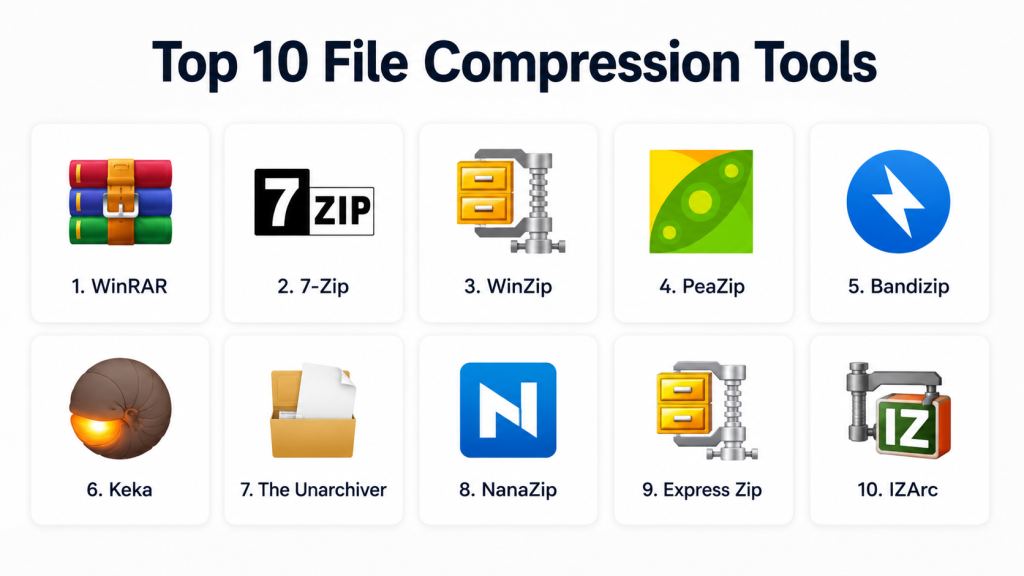
Top 10 File Compression Tools
1. 7-Zip
Short description: 7-Zip is a popular open-source file compression tool known for strong compression performance, especially with the 7z format. It is widely used by Windows users, developers, IT teams, and anyone looking for a free and reliable archive manager.
Key Features
- Supports 7z, ZIP, TAR, GZIP, BZIP2, XZ, and many extraction formats.
- Strong compression ratio with the 7z format.
- Supports AES-256 encryption for selected archive formats.
- Includes a simple file manager interface.
- Offers command-line support for scripting and automation.
- Can split large archives into smaller parts.
- Free for personal and commercial use.
Pros
- Excellent compression ratio for many file types.
- Free, lightweight, and trusted by technical users.
- Useful for both manual and automated workflows.
Cons
- Interface looks basic compared with modern paid tools.
- macOS support usually depends on compatible ports or third-party builds.
- Some advanced settings may confuse beginners.
Platforms / Deployment
Windows / Linux / macOS through compatible builds
Local desktop / Self-hosted usage
Security & Compliance
Supports AES-256 encryption for supported formats. SOC 2, ISO 27001, HIPAA, and similar compliance details are not publicly stated.
Integrations & Ecosystem
7-Zip works well in technical environments because it supports command-line usage and many common archive formats. It is often used in backup jobs, scripts, and software packaging workflows.
- Windows shell integration
- Command-line automation
- Backup scripts
- Software packaging
- Multi-format archive handling
- Community-supported ecosystem
Support & Community
7-Zip has strong community support and widely available documentation. Formal enterprise support tiers are not publicly stated.
2. WinRAR
Short description: WinRAR is a well-known commercial file compression tool best known for creating and managing RAR archives. It is widely used by individuals, businesses, and technical users who need archive repair, splitting, and password protection.
Key Features
- Supports RAR, ZIP, TAR, GZ, BZ2, XZ, ISO, and many other formats.
- Creates RAR and ZIP archives.
- Offers archive repair features.
- Supports password protection and encryption.
- Can split large archives into multiple parts.
- Includes Windows context-menu integration.
- Supports recovery records for RAR files.
Pros
- Strong archive repair and recovery features.
- Good format support for extraction.
- Familiar interface for many users.
Cons
- Paid license is required for continued commercial use.
- RAR creation is mainly tied to WinRAR and related tools.
- Interface is practical but not very modern.
Platforms / Deployment
Windows / macOS command-line version / Linux command-line version / Android
Local desktop / Mobile
Security & Compliance
Supports encryption and password protection for supported archive formats. SOC 2, ISO 27001, HIPAA, and similar compliance details are not publicly stated.
Integrations & Ecosystem
WinRAR fits well into desktop productivity, backup, file packaging, and archive repair workflows.
- Windows Explorer integration
- Command-line support
- Multi-volume archive workflows
- Backup packaging
- Email attachment preparation
- RAR ecosystem compatibility
Support & Community
Vendor documentation and support are available. Community knowledge is also strong because WinRAR has been widely used for a long time.
3. WinZip
Short description: WinZip is a commercial compression and file management tool focused on ZIP workflows, encryption, sharing, and productivity features. It is useful for business users who want a polished interface and extra file handling options.
Key Features
- Creates and extracts ZIP files.
- Supports several archive formats.
- Offers password protection and encryption.
- Includes file sharing features in supported editions.
- Provides cloud storage connections in some versions.
- Includes PDF and image-related utility features in some editions.
- Supports backup and file management workflows.
Pros
- User-friendly interface for business users.
- Good fit for office productivity workflows.
- Offers more than basic compression in paid editions.
Cons
- Paid tool, which may not suit users who need only basic compression.
- Some features depend on the selected edition.
- Heavier than lightweight open-source alternatives.
Platforms / Deployment
Windows / macOS / iOS / Android
Local desktop / Mobile / Cloud-connected features in supported editions
Security & Compliance
Supports encryption and password protection. SOC 2, ISO 27001, HIPAA, and similar compliance details are not publicly stated.
Integrations & Ecosystem
WinZip is useful when compression, file sharing, cloud storage, and office productivity workflows overlap.
- Cloud storage connections in supported editions
- Email sharing workflows
- Desktop file management
- Business document packaging
- PDF-related workflow support in some editions
- Mobile app ecosystem
Support & Community
Commercial documentation and vendor support are available. Support level may vary by product edition and license.
4. PeaZip
Short description: PeaZip is a free and open-source archive manager that supports many file formats. It is suitable for users who want a flexible alternative to paid compression software.
Key Features
- Supports ZIP, 7z, TAR, GZIP, BZIP2, XZ, ARC, and many extraction formats.
- Offers archive conversion options.
- Includes encryption and password protection features.
- Supports file splitting and joining.
- Provides secure delete features.
- Works across major desktop platforms.
- Free and open-source.
Pros
- Strong format coverage.
- Free and open-source.
- Good balance between usability and advanced features.
Cons
- Interface may feel less polished than premium tools.
- Some advanced features require learning.
- Enterprise support is not the main focus.
Platforms / Deployment
Windows / Linux / macOS
Local desktop / Self-hosted usage
Security & Compliance
Supports encryption and password protection for supported formats. SOC 2, ISO 27001, HIPAA, and similar compliance details are not publicly stated.
Integrations & Ecosystem
PeaZip works well as a local archive manager and supports many technical file workflows.
- Desktop archive management
- Open-source ecosystem
- Format conversion
- Secure delete workflows
- Portable usage
- Multi-format extraction
Support & Community
Community support and documentation are available. Formal enterprise onboarding or managed support tiers are not publicly stated.
5. The Unarchiver
Short description: The Unarchiver is a simple macOS-focused tool for extracting archive files. It is best for users who mainly need to open many archive formats without dealing with complex compression settings.
Key Features
- Extracts many archive formats.
- Simple macOS integration.
- Lightweight and easy to use.
- Handles older and less common archive formats.
- Works as a replacement for default archive extraction.
- Designed for quick archive opening.
- Requires little learning.
Pros
- Very easy for macOS users.
- Good for opening unusual archive types.
- Lightweight and simple.
Cons
- Focused mainly on extraction.
- Not ideal for advanced archive creation.
- Limited enterprise management features.
Platforms / Deployment
macOS
Local desktop
Security & Compliance
SOC 2, ISO 27001, HIPAA, and similar compliance details are not publicly stated.
Integrations & Ecosystem
The Unarchiver fits naturally into macOS workflows and is useful when users receive files in many compressed formats.
- macOS file opening workflow
- Finder-friendly extraction
- Legacy archive support
- Personal productivity workflows
- Lightweight desktop usage
- Simple archive access
Support & Community
Documentation is basic but useful for common needs. Community familiarity is strong among macOS users, but formal enterprise support is not publicly stated.
6. Bandizip
Short description: Bandizip is a fast file compression and extraction tool with a clean desktop interface. It is suitable for Windows and macOS users who need speed, usability, and broad format support.
Key Features
- Supports ZIP, 7z, TAR, GZ, and many other formats.
- Extracts RAR and other popular archive types.
- Offers fast compression and extraction.
- Supports password protection for supported formats.
- Includes archive preview features.
- Supports split archives.
- Uses a modern desktop interface.
Pros
- Fast and easy to use.
- Good desktop experience.
- Suitable for everyday business and personal use.
Cons
- Some features may depend on paid editions.
- Not as developer-focused as command-line tools.
- Compliance details are not publicly stated.
Platforms / Deployment
Windows / macOS
Local desktop
Security & Compliance
Supports password protection and encryption for supported formats. SOC 2, ISO 27001, HIPAA, and similar compliance details are not publicly stated.
Integrations & Ecosystem
Bandizip is useful for desktop file compression, archive preview, and everyday file sharing workflows.
- Windows shell integration
- Desktop file management
- Archive preview
- Large archive handling
- Multi-format extraction
- Business file sharing
Support & Community
Vendor documentation and support are available. Support model may vary by edition.
7. Keka
Short description: Keka is a macOS file archiver designed for simple compression and extraction. It is popular among Mac users who want a clean, lightweight, and practical compression tool.
Key Features
- Supports 7z, ZIP, TAR, GZIP, BZIP2, XZ, and other formats.
- Extracts RAR and several additional formats.
- Supports password-protected archives.
- Offers split archive support.
- Provides drag-and-drop workflow.
- Uses a clean macOS-style interface.
- Runs locally and lightly.
Pros
- Excellent fit for macOS users.
- Simple and clean interface.
- Good support for common archive formats.
Cons
- macOS-focused.
- Advanced enterprise controls are limited.
- Compliance certifications are not publicly stated.
Platforms / Deployment
macOS
Local desktop
Security & Compliance
Supports password protection for supported archive formats. SOC 2, ISO 27001, HIPAA, and similar compliance details are not publicly stated.
Integrations & Ecosystem
Keka fits into everyday macOS file workflows and is useful for designers, developers, freelancers, and business users.
- Finder-style workflows
- Drag-and-drop compression
- Archive splitting
- Common developer archive formats
- Local desktop usage
- Simple file sharing preparation
Support & Community
Documentation and user support are available. Community awareness is strong among macOS users, but enterprise support tiers are not publicly stated.
8. gzip
Short description: gzip is a widely used compression utility common in Linux, Unix, server, and developer environments. It is best for compressing single files, logs, web assets, and data streams.
Key Features
- Standard compression utility in many Unix-like systems.
- Commonly used for logs and server files.
- Works well with TAR for folder archiving.
- Strong compatibility across technical systems.
- Script-friendly command-line usage.
- Lightweight and fast.
- Common in web and backend workflows.
Pros
- Very widely supported.
- Excellent for automation and server workflows.
- Simple, stable, and reliable.
Cons
- Usually paired with TAR for folder archives.
- No built-in modern graphical interface.
- Encryption is not the main focus.
Platforms / Deployment
Linux / macOS / Unix-like systems / Windows through compatible tools
Local / Server / Self-hosted
Security & Compliance
Encryption, SSO/SAML, MFA, audit logs, RBAC, SOC 2, ISO 27001, HIPAA, and similar details are not publicly stated for gzip itself.
Integrations & Ecosystem
gzip is deeply embedded in server, developer, web, and data workflows.
- Linux server automation
- Log compression
- Web asset compression
- TAR archive workflows
- CI/CD scripts
- Data transfer workflows
Support & Community
Documentation is widely available through operating system manuals and community resources. Community strength is very high due to broad technical adoption.
9. bzip2
Short description: bzip2 is a compression tool often used in Unix and Linux environments where better compression than gzip may be useful. It is suitable for technical users, archives, and scripted workflows.
Key Features
- Strong compression for many text-heavy files.
- Common in Unix and Linux systems.
- Works with TAR for directory archives.
- Command-line focused.
- Stable and reliable.
- Useful for long-term archive workflows.
- Broad compatibility in technical environments.
Pros
- Often provides better compression than gzip.
- Reliable for technical archive workflows.
- Good for scripts and server-side jobs.
Cons
- Slower than some modern alternatives.
- No built-in graphical interface focus.
- Not designed as a complete archive manager.
Platforms / Deployment
Linux / macOS / Unix-like systems / Windows through compatible tools
Local / Server / Self-hosted
Security & Compliance
Encryption, SSO/SAML, MFA, audit logs, RBAC, SOC 2, ISO 27001, HIPAA, and similar details are not publicly stated for bzip2 itself.
Integrations & Ecosystem
bzip2 is commonly used in developer, system administration, and archive workflows where compression ratio matters.
- TAR archive workflows
- Linux archive use cases
- Server backup scripts
- Data archive pipelines
- Command-line automation
- Technical documentation workflows
Support & Community
Documentation is available through operating system manuals and community resources. Formal enterprise support is usually connected to operating system vendors or distributions.
10. Zstandard
Short description: Zstandard, also known as zstd, is a modern compression tool designed for high-speed compression and decompression with strong compression ratios. It is useful for developers, infrastructure teams, data teams, and performance-sensitive systems.
Key Features
- High-speed compression and decompression.
- Strong balance between speed and compression ratio.
- Command-line and library usage.
- Suitable for large-scale data workflows.
- Supports adjustable compression levels.
- Useful in infrastructure and backend systems.
- Works well for automation and pipelines.
Pros
- Excellent speed-to-compression balance.
- Strong fit for modern technical environments.
- Good for large-scale data and infrastructure workflows.
Cons
- Less familiar to general business users than ZIP tools.
- GUI support depends on third-party tools.
- May require technical knowledge for best results.
Platforms / Deployment
Linux / macOS / Windows through available builds and packages
Local / Server / Self-hosted / Library-based integration
Security & Compliance
Encryption, SSO/SAML, MFA, audit logs, RBAC, SOC 2, ISO 27001, HIPAA, and similar details are not publicly stated for Zstandard itself.
Integrations & Ecosystem
Zstandard is strong in developer and infrastructure ecosystems. It is often used where speed, compression ratio, and automation are important.
- Command-line workflows
- Data pipeline compression
- Backup optimization
- Software packaging
- Infrastructure systems
- Library integration for applications
Support & Community
Community support is strong among developers and infrastructure teams. Formal enterprise support depends on vendors or platforms that package and support it.
Comparison Table
| Tool Name | Best For | Platform(s) Supported | Deployment | Standout Feature | Public Rating |
|---|---|---|---|---|---|
| 7-Zip | Free high-ratio compression | Windows, Linux, macOS through compatible builds | Self-hosted / Local | Strong 7z compression | N/A |
| WinRAR | RAR archive creation and repair | Windows, macOS CLI, Linux CLI, Android | Local / Mobile | Archive repair and recovery records | N/A |
| WinZip | Business-friendly ZIP workflows | Windows, macOS, iOS, Android | Local / Cloud-connected | Polished productivity features | N/A |
| PeaZip | Open-source multi-format archive management | Windows, Linux, macOS | Self-hosted / Local | Broad format support | N/A |
| The Unarchiver | macOS archive extraction | macOS | Local | Simple extraction for many formats | N/A |
| Bandizip | Fast desktop compression | Windows, macOS | Local | Fast compression and archive preview | N/A |
| Keka | macOS compression and extraction | macOS | Local | Clean drag-and-drop workflow | N/A |
| gzip | Server and log compression | Linux, macOS, Unix-like systems, Windows-compatible tools | Self-hosted / Server | Standard Unix compression | N/A |
| bzip2 | Technical archive compression | Linux, macOS, Unix-like systems, Windows-compatible tools | Self-hosted / Server | Strong compression for text-heavy files | N/A |
| Zstandard | High-speed infrastructure compression | Linux, macOS, Windows | Self-hosted / Server / Library | Speed-to-compression balance | N/A |
Evaluation & Scoring of File Compression Tools
| Tool Name | Core (25%) | Ease (15%) | Integrations (15%) | Security (10%) | Performance (10%) | Support (10%) | Value (15%) | Weighted Total (0–10) |
|---|---|---|---|---|---|---|---|---|
| 7-Zip | 9 | 8 | 8 | 8 | 9 | 8 | 10 | 8.70 |
| WinRAR | 9 | 8 | 7 | 8 | 8 | 8 | 7 | 7.95 |
| WinZip | 8 | 9 | 8 | 8 | 8 | 8 | 7 | 8.00 |
| PeaZip | 8 | 8 | 7 | 8 | 8 | 7 | 9 | 7.90 |
| The Unarchiver | 6 | 9 | 5 | 5 | 8 | 7 | 8 | 6.85 |
| Bandizip | 8 | 9 | 7 | 7 | 9 | 7 | 8 | 8.00 |
| Keka | 7 | 9 | 6 | 7 | 8 | 7 | 8 | 7.45 |
| gzip | 7 | 6 | 9 | 4 | 8 | 9 | 10 | 7.55 |
| bzip2 | 7 | 5 | 8 | 4 | 7 | 8 | 9 | 6.95 |
| Zstandard | 8 | 6 | 9 | 4 | 10 | 8 | 10 | 8.05 |
The scores are comparative and should not be treated as universal rankings. A tool with a lower score may still be the best option for a specific workflow. Desktop users may value ease of use more, while developers may value command-line support, speed, and automation. Security scoring is conservative where enterprise compliance details are not publicly stated.
Which File Compression Tool Is Right for You?
Solo / Freelancer
For solo users, freelancers, and consultants, the best choices are usually 7-Zip, PeaZip, Keka, or The Unarchiver. These tools are simple, affordable, and practical for everyday document sharing, project folders, and client file packaging.
Windows users can start with 7-Zip because it is free and powerful. Mac users may prefer Keka or The Unarchiver because they feel natural on macOS.
SMB
Small and medium businesses should consider WinZip, Bandizip, WinRAR, or 7-Zip depending on budget and user skill level. If users want a clean business-friendly interface, WinZip or Bandizip can be useful. If the company wants a free and capable tool, 7-Zip is a strong option.
SMBs should also check password protection, format compatibility, and support expectations before choosing one standard tool.
Mid-Market
Mid-market teams often need a mix of usability, automation, and security. 7-Zip, WinRAR, WinZip, and Zstandard can all fit different parts of the environment.
Business teams may prefer WinZip or Bandizip, while engineering teams may prefer 7-Zip, gzip, or Zstandard for scripting and backend workflows.
Enterprise
Enterprise teams should evaluate compression tools based on governance, endpoint compatibility, security policies, automation, deployment process, and internal support. 7-Zip may be useful for broad desktop use, while gzip, bzip2, and Zstandard are better for servers, infrastructure, and data workflows.
Enterprises should also validate encryption needs, patching processes, internal standards, and support models before making a tool standard across the organization.
Budget vs Premium
If budget is the main concern, 7-Zip, PeaZip, gzip, bzip2, and Zstandard provide strong value. If the team wants commercial packaging, polished UI, or vendor-backed support, WinZip, WinRAR, and Bandizip may be better options.
Feature Depth vs Ease of Use
For feature depth, 7-Zip, WinRAR, PeaZip, and Zstandard are strong choices. For ease of use, WinZip, Bandizip, Keka, and The Unarchiver are more beginner-friendly.
The right tool depends on whether users need simple drag-and-drop compression or deeper archive control.
Integrations & Scalability
For automation, scripting, server compression, CI/CD workflows, and data pipelines, gzip, bzip2, 7-Zip CLI, and Zstandard are strong options. For desktop productivity and everyday file sharing, WinZip, Bandizip, and WinRAR are easier to adopt.
Security & Compliance Needs
If security is important, choose tools that support password protection and encryption, such as 7-Zip, WinRAR, WinZip, PeaZip, Bandizip, and Keka. For regulated environments, do not assume that a compression tool alone meets compliance needs. Validate encryption settings, access policies, audit processes, endpoint controls, and internal security requirements.
Frequently Asked Questions
1. What are file compression tools?
File compression tools reduce file size and package files into archive formats such as ZIP, 7z, RAR, TAR, GZIP, or Zstandard. They help with storage savings, file sharing, backup, and better file organization.
2. Are file compression tools free?
Many file compression tools are free, including 7-Zip, PeaZip, gzip, bzip2, and Zstandard. Commercial tools such as WinZip and WinRAR may require paid licenses depending on usage.
3. Which file compression format is best?
There is no single best format for every need. ZIP is widely compatible, 7z is strong for compression ratio, TAR and GZIP are common in Linux environments, and Zstandard is useful for speed-focused technical workflows.
4. Are compressed files secure?
Compressed files are not automatically secure. Security depends on whether the tool and format support encryption, password protection, and safe handling of sensitive files.
5. Can file compression tools be used in enterprises?
Yes, but enterprises should review licensing, security settings, endpoint deployment, automation support, and compliance needs before choosing a standard tool.
6. Which file compression tool is best for Windows users?
7-Zip is a strong free choice for Windows users. WinRAR, WinZip, and Bandizip are also useful depending on whether the user needs RAR support, business features, or a modern interface.
7. Which file compression tool is best for macOS users?
Keka and The Unarchiver are strong choices for macOS users. WinZip and PeaZip can also be considered depending on the required features.
8. Which file compression tool is best for developers?
Developers often prefer 7-Zip CLI, gzip, bzip2, TAR, and Zstandard because they work well in scripts, servers, CI/CD workflows, and automation pipelines.
9. Can compression tools reduce cloud storage costs?
Yes, compression can reduce storage usage for backups, logs, archives, and large files. Teams should test compression ratio, restore speed, and operational impact before depending on it for cost savings.
10. What common mistakes should teams avoid?
Teams should avoid weak passwords, assuming compression means encryption, using rare formats for external sharing, ignoring restore testing, and failing to document archive standards.
11. Can compressed files become damaged?
Yes, archives can become damaged because of failed downloads, storage errors, or interrupted transfers. Some tools offer repair features, but reliable transfer and proper backups are still important.
12. Should I choose open-source or commercial compression tools?
Open-source tools are great for cost control and technical flexibility. Commercial tools may be better when users need polished interfaces, vendor support, and packaged business features.
Conclusion
File compression tools are still important for daily productivity, IT operations, developer workflows, secure file sharing, and backup management. The best tool depends on your operating system, file types, security needs, team size, budget, and technical skill level. For general Windows users, 7-Zip is a strong free option. For business-friendly workflows, WinZip, WinRAR, and Bandizip are practical choices. For macOS users, Keka and The Unarchiver keep things simple. For developers, system administrators, and infrastructure teams, gzip, bzip2, and Zstandard are useful because they fit automation and server-side workflows very well.
The best next step is to shortlist two or three tools, test them with real files, compare compression speed and output size, validate encryption needs, and confirm whether the tool fits your team’s daily workflow before making it a standard choice.
