Introduction
Remote Desktop Tools allow users to access and control computers, servers, or virtual desktops from a remote location. These tools replicate the full desktop environment, enabling users to interact with systems as if they were physically present. They are essential for remote work, IT support, and infrastructure management.
As organizations adopt distributed work models, remote desktop tools have become critical for maintaining productivity and operational continuity. They help teams troubleshoot issues, manage systems, and collaborate efficiently across different locations.
Real-world use cases:
- Remote IT support and troubleshooting
- Accessing office systems from home
- Managing servers and cloud infrastructure
- Remote collaboration and demonstrations
- Running applications on remote machines
What buyers should evaluate:
- Connection speed and latency
- Security (encryption, MFA, access control)
- Ease of use and setup
- Cross-platform compatibility
- File transfer capabilities
- Session management features
- Integration with IT tools
- Scalability for teams
- Cost and licensing
Best for:
IT teams, enterprises, developers, MSPs, and remote workers requiring full system access.
Not ideal for:
Users needing only file sharing or basic collaboration tools.
Key Trends in Remote Desktop Tools
- Cloud-based remote desktop replacing traditional VPN setups
- Zero-trust security models becoming standard
- AI-assisted troubleshooting and diagnostics
- Browser-based remote access solutions
- Multi-device and cross-platform support
- Integration with DevOps and ITSM platforms
- Enhanced session recording and monitoring
- Automation and unattended access capabilities
- Performance optimization for low bandwidth environments
How We Selected These Tools (Methodology)
- Market adoption and popularity
- Performance and connection reliability
- Security features and encryption standards
- Feature completeness and usability
- Integration ecosystem
- Cross-platform compatibility
- Scalability across business sizes
- Automation and management capabilities
- Support quality and documentation
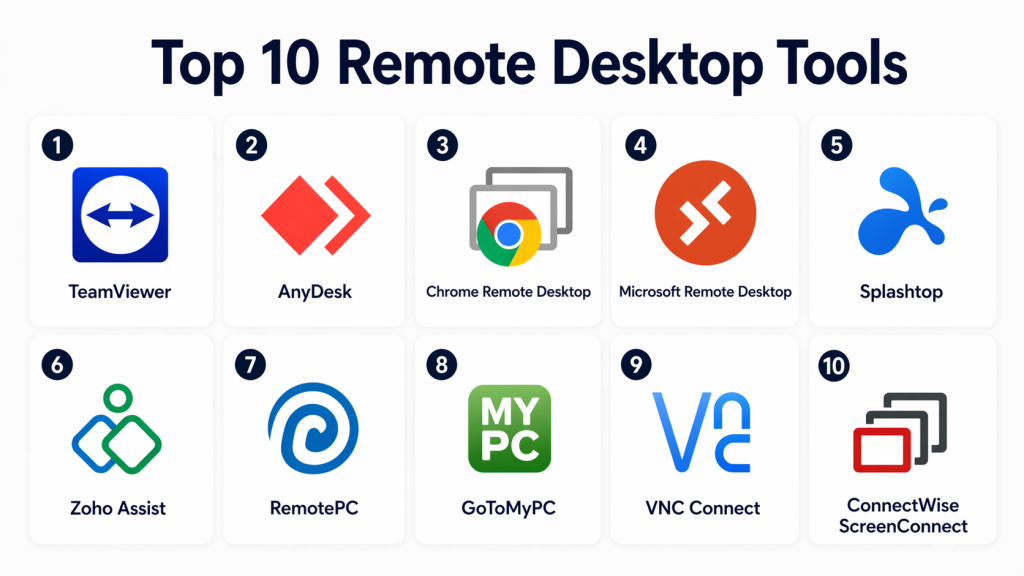
Top 10 Remote Desktop Tools
#1 — TeamViewer
Short description:
TeamViewer is a leading remote desktop platform designed for secure and reliable remote access. It enables seamless connections across devices for IT support and collaboration. Businesses use it for managing distributed systems efficiently. It is ideal for enterprises and professional environments.
Key Features
- Cross-platform remote control
- File transfer
- Session recording
- Multi-device support
- Remote collaboration
Pros
- Easy to use
- Feature-rich
Cons
- Expensive licensing
- Free version limitations
Platforms / Deployment
Web / Windows / macOS / Linux / iOS / Android — Cloud
Security & Compliance
Encryption, MFA
Integrations & Ecosystem
- APIs
- IT tools
- Collaboration platforms
Support & Community
Large global user base
#2 — AnyDesk
Short description:
AnyDesk is a lightweight remote desktop tool known for fast performance and low latency connections. It provides smooth remote access across devices. Users rely on it for remote work and support tasks. It is ideal for individuals and businesses needing high-speed access.
Key Features
- High-speed connections
- Low latency
- Remote control
- File transfer
- Session recording
Pros
- Fast performance
- Lightweight
Cons
- Limited advanced features
- Basic interface
Platforms / Deployment
Web / Windows / macOS / Linux / iOS / Android — Cloud
Security & Compliance
Encryption
Integrations & Ecosystem
- APIs
- IT tools
Support & Community
Active community
#3 — Chrome Remote Desktop
Short description:
Chrome Remote Desktop is a simple browser-based remote access tool that enables secure connections without complex setup. It allows users to access systems quickly from anywhere. The interface is minimal and easy to use. It is ideal for individuals and basic use cases.
Key Features
- Browser-based access
- Secure connections
- Easy setup
- Cross-platform support
- Remote assistance
Pros
- Free to use
- Easy setup
Cons
- Limited features
- Not enterprise-focused
Platforms / Deployment
Web / Windows / macOS / Linux — Cloud
Security & Compliance
Encryption
Integrations & Ecosystem
- Browser ecosystem
Support & Community
Basic support
#4 — Microsoft Remote Desktop
Short description:
Microsoft Remote Desktop is a built-in remote access solution for Windows systems. It enables secure connections and full desktop control. Organizations use it for internal IT management and administration. It is ideal for businesses using Microsoft infrastructure.
Key Features
- Remote desktop access
- Secure connections
- Session control
- File access
- Multi-device support
Pros
- Native integration
- Reliable
Cons
- Requires configuration
- Limited flexibility
Platforms / Deployment
Windows / macOS / iOS / Android — Cloud
Security & Compliance
Encryption, authentication
Integrations & Ecosystem
- Microsoft ecosystem
Support & Community
Strong enterprise support
#5 — Splashtop
Short description:
Splashtop is a high-performance remote desktop tool designed for businesses and IT teams. It provides fast and secure remote access with strong performance optimization. Organizations use it for support and remote work. It is ideal for enterprises and SMBs.
Key Features
- High-performance access
- File transfer
- Multi-monitor support
- Remote printing
- Session recording
Pros
- Strong performance
- Secure
Cons
- Paid plans required
- Setup required
Platforms / Deployment
Web / Windows / macOS / Linux / iOS / Android — Cloud
Security & Compliance
Encryption
Integrations & Ecosystem
- IT tools
- APIs
Support & Community
Reliable support
#6 — Zoho Assist
Short description:
Zoho Assist is a cloud-based remote support tool designed for IT teams and businesses. It provides unattended access and troubleshooting features. Organizations use it to manage systems efficiently. It is ideal for SMBs and support teams.
Key Features
- Unattended access
- Remote troubleshooting
- File transfer
- Session recording
- Multi-user support
Pros
- Affordable
- Easy to use
Cons
- Limited customization
- UI can improve
Platforms / Deployment
Web / Windows / macOS / Linux / iOS / Android — Cloud
Security & Compliance
Encryption
Integrations & Ecosystem
- CRM tools
- IT tools
Support & Community
Good support
#7 — RemotePC
Short description:
RemotePC is a cloud-based remote desktop solution designed for individuals and businesses. It enables secure access to multiple systems from anywhere. Users can manage remote desktops easily. It is ideal for remote work and IT operations.
Key Features
- Remote access
- File transfer
- Multi-device support
- Always-on access
- Collaboration tools
Pros
- Cost-effective
- Scalable
Cons
- Basic interface
- Limited automation
Platforms / Deployment
Web / Windows / macOS / Linux / iOS / Android — Cloud
Security & Compliance
Encryption
Integrations & Ecosystem
- APIs
- IT tools
Support & Community
Reliable support
#8 — GoToMyPC
Short description:
GoToMyPC is a remote desktop solution designed for easy and secure access to systems. It provides reliable performance and simple setup. Businesses use it for remote work and IT access. It is ideal for professionals needing stable connectivity.
Key Features
- Remote access
- File transfer
- Multi-device support
- Remote printing
- Secure login
Pros
- Easy to use
- Stable performance
Cons
- Expensive
- Limited customization
Platforms / Deployment
Web / Windows / macOS / iOS / Android — Cloud
Security & Compliance
Encryption, MFA
Integrations & Ecosystem
- Enterprise tools
Support & Community
Strong support
#9 — VNC Connect
Short description:
VNC Connect is a remote desktop tool based on VNC technology for secure remote access. It enables users to control systems from anywhere with flexible deployment options. Organizations use it for IT support and management. It is ideal for businesses needing control and flexibility.
Key Features
- Remote control
- Cross-platform support
- File transfer
- Session encryption
- Cloud connectivity
Pros
- Flexible deployment
- Secure
Cons
- Requires setup
- Interface is basic
Platforms / Deployment
Web / Windows / macOS / Linux / iOS / Android — Cloud / On-premise
Security & Compliance
Encryption
Integrations & Ecosystem
- IT systems
- APIs
Support & Community
Strong community
#10 — ConnectWise ScreenConnect
Short description:
ConnectWise ScreenConnect is a remote desktop tool designed for IT professionals and MSPs. It provides secure remote control and automation capabilities. Organizations use it for managing client systems. It is ideal for enterprises and service providers.
Key Features
- Remote control
- Session management
- Automation tools
- File transfer
- Reporting
Pros
- Strong automation
- Enterprise features
Cons
- Complex setup
- Expensive
Platforms / Deployment
Cloud / On-premise
Security & Compliance
Encryption
Integrations & Ecosystem
- ITSM tools
- APIs
Support & Community
Enterprise support
Comparison Table (Top 10)
| Tool Name | Best For | Platform(s) Supported | Deployment | Standout Feature | Public Rating |
|---|---|---|---|---|---|
| TeamViewer | Enterprise | Multi | Cloud | Cross-platform | N/A |
| AnyDesk | Speed | Multi | Cloud | Low latency | N/A |
| Chrome Remote Desktop | Individuals | Multi | Cloud | Free access | N/A |
| Microsoft Remote Desktop | Windows users | Multi | Cloud | Native integration | N/A |
| Splashtop | Performance | Multi | Cloud | High speed | N/A |
| Zoho Assist | SMB support | Multi | Cloud | Remote support | N/A |
| RemotePC | Remote work | Multi | Cloud | Multi-device | N/A |
| GoToMyPC | Professionals | Multi | Cloud | Reliability | N/A |
| VNC Connect | IT teams | Multi | Hybrid | Flexibility | N/A |
| ScreenConnect | MSPs | Multi | Hybrid | Automation | N/A |
Evaluation & Scoring of Remote Desktop Tools
| Tool Name | Core (25%) | Ease (15%) | Integrations (15%) | Security (10%) | Performance (10%) | Support (10%) | Value (15%) | Weighted Total (0–10) |
|---|---|---|---|---|---|---|---|---|
| TeamViewer | 9 | 9 | 9 | 9 | 8 | 9 | 7 | 8.6 |
| AnyDesk | 9 | 8 | 7 | 8 | 9 | 8 | 8 | 8.3 |
| Chrome Remote Desktop | 7 | 9 | 6 | 8 | 7 | 6 | 10 | 7.8 |
| Microsoft Remote Desktop | 8 | 7 | 8 | 9 | 8 | 8 | 8 | 8.1 |
| Splashtop | 9 | 8 | 8 | 8 | 9 | 8 | 8 | 8.4 |
| Zoho Assist | 8 | 8 | 8 | 8 | 7 | 8 | 9 | 8.1 |
| RemotePC | 8 | 8 | 7 | 8 | 8 | 7 | 9 | 8.1 |
| GoToMyPC | 8 | 8 | 7 | 8 | 8 | 8 | 7 | 7.9 |
| VNC Connect | 8 | 7 | 7 | 8 | 7 | 7 | 7 | 7.6 |
| ScreenConnect | 9 | 6 | 9 | 9 | 8 | 9 | 7 | 8.3 |
Which Remote Desktop Tool Is Right for You?
Solo / Freelancer
Chrome Remote Desktop and AnyDesk are simple and cost-effective.
SMB
Zoho Assist and RemotePC provide strong usability and value.
Mid-Market
Splashtop and AnyDesk offer balanced performance.
Enterprise
TeamViewer and ScreenConnect are best for scalability.
Budget vs Premium
Free tools suit individuals; enterprises need paid tools.
Feature Depth vs Ease of Use
Chrome Remote Desktop is simple; TeamViewer is feature-rich.
Integrations & Scalability
TeamViewer and ScreenConnect excel.
Security & Compliance Needs
Microsoft Remote Desktop and TeamViewer are strong options.
Frequently Asked Questions (FAQs)
1. What are remote desktop tools?
Remote desktop tools allow users to access and control computers remotely. They provide full desktop functionality. These tools are widely used in IT operations.
2. Are remote desktop tools secure?
Most tools use encryption and authentication methods. Security depends on configuration. Using MFA improves safety.
3. What is RDP?
RDP is a protocol that enables remote desktop connections. It allows secure communication between systems. It is widely used in Windows environments.
4. Which tool is best for beginners?
Chrome Remote Desktop and AnyDesk are easy to use. They require minimal setup.
5. Can I transfer files?
Yes, most tools support file transfer. This makes data sharing easy.
6. Are there free tools?
Yes, some tools offer free versions. Paid tools provide more features.
7. What industries use remote desktop tools?
IT, finance, healthcare, and education sectors use them widely.
8. Can I access systems from mobile?
Yes, most tools support mobile devices. Users can connect via smartphones.
9. What are common mistakes?
Not securing access and weak authentication are common issues.
10. How do I choose the right tool?
Evaluate security, performance, integrations, and cost.
Conclusion
Remote Desktop Tools are essential for modern IT operations, enabling secure and efficient access to systems from anywhere. They support remote work, troubleshooting, and infrastructure management across distributed environments.
Each tool offers different strengths, from ease of use and affordability to enterprise-grade scalability and security. Choosing the right solution depends on your specific needs, technical requirements, and team size.
A practical approach is to shortlist a few tools and test them in real-world scenarios. This helps ensure compatibility with your workflows and infrastructure.
Selecting the right remote desktop tool will improve productivity, enhance security, and support long-term operational efficiency.
